Values & Numbers Reference
This page describes built-in Touch Portal Values & Numbers actions, events and states. For other automation options, see the Touch Portal Capability Model.
Values & Numbers Actions
Advanced Value Calculations

Action settings
Value
the Value to store the result in.
Calculation
the calculation
This action allows you to do advanced calculations with numbers.
Important behavior description
This advanced calculation action works with types of data. This means that it makes a distinction between Integers and Doubles (whole numbers and decimal numbers) for example. This means that 9 / 5 will result in 1 and 9.0 / 5 will result in 1.8. Be sure to keep this in mind when using this action.
Available Calculation methods
The list below shows all calculation operators and functions available:
- Plus operator - The usual + operator is used. For example 6 + 9
- Subtraction operator - The usual - operator is used. For example 9 - 6
- Multiplication operator - The usual * operator is used. For example 9 * 6
- Division operator - The usual / operator is used. For example 9 / 3
- Modulus operator - The % operator is used. An alternative is the mod operator. For example 5 mod 2 gives 1 and is equivalent to 5 % 2
- Random - Use tp.random() to generate a random number.
- Power - Use tp.pow(10,2) to calculate 10 raised to the power of 2 which is 100
- Absolute - Use tp.abs(-15) to get the absolute value, in this example 15.
- Square Root - Use tp.sqrt(16) to get the square root of a number, in this example 4.
- Exp - Use tp.exp(4). e raised to the power of a number. e is the base of the natural system of logarithms (approximately 2.718282).
- Log - Use tp.log(5) to get the natural logarithm of 5 in this example.
- Log10 - Use tp.log10(5) to get the base 10 logarithm of a 5 in this example.
- Sine Function - Use tp.sin(5) to get the sine of 5 in this example.
- Cosine Function - Use tp.cos(5) to get the cosine of 5 in this example.
- Tangent Function - Use tp.tan(5) to get the tangent of 5 in this example.
- Inverse Sine Function - Use tp.asin(5) to get the inverse sine of 5 in this example.
- Inverse Cosine Function - Use tp.acos(5) to get the inverse cosine of 5 in this example.
- Inverse Tangent Function - Use tp.atan(5) to get the inverse tangent of 5 in this example.
- Hyperbolic Sine Function - Use tp.sinh(5) to get the hyperbolic sine of 5 in this example.
- Hyperbolic Cosine Function - Use tp.cosh(5) to get the hyperbolic cosine of 5 in this example.
- Hyperbolic Tangent Function - Use tp.tanh(5) to get the hyperbolic tangent of 5 in this example.
Action

4.3
Available since


Increment Value

Action settings
Value
the Value Object to increment.
increment
the increment, this can be a negative number to effectively decrement a Value.
This action allows you to increment a Value with a given number.
Note: This action can only increment with whole number, decimal numbers are not allowed.
Action
2.2
Available since
Randomize Value

Action settings
Value
details
start of range
The start of the range from which a random number should be generated. This range start number is included in the random generation.
end of range
The end of the range from which a random number should be generated. This range start number is included in the random generation.
This action allows you to generate a random (whole) number and store it in a Value
Action
2.2
Available since
Round Value Number

Action settings
Value
the Value to round
Decimals
the amount of decimals to keep (or add) when rounding the number.
This action allows you to round the number stored in a Value.
Note: Internally Touch Portal works with a period (.) in a number to divide the whole number with the decimal part. This action will switch all commas for periods to ensure the function works when used with a wrong format.
Action
4.0
Available since
Value Calculations
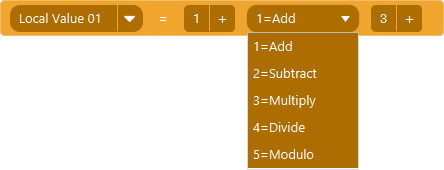
Action settings
Value
the Value to store the result in.
Left Side
the left side of the formula.
Operator
the operator
Right Side
the right side of the formula
This action allows you to do standard calculations with numbers.
Note: Using this actions on text Value will add the text and remove the text but the multiply, the divide and the modulo do nothing with Text values.
Action
2.3
Available since