OBS Reference
This page describes built-in Touch Portal OBS actions, events and states. For other automation options, see the Touch Portal Capability Model.
OBS Actions
Set Streaming State
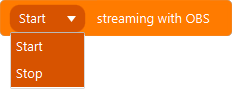
Action settings
Option
Option to either start or stop the stream
This action allows you to set the state of streaming, in other words start and stop a stream.
Action

1.6
Available since


Set Recording State
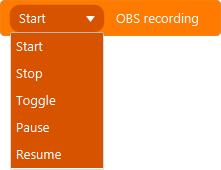
Action settings
Option
The options to set the state to
This action allows you to set the state of recording within OBS.
Action
2.1
Available since
Set Profile

Action settings
Profile
the profile to set
This action allows you to change the current OBS Profile
Note: The OBS Websocket API will only load scene collections that are part of the current profile.
Action
2.1
Available since
Set Scene Collection

Action settings
Scene Collection
the scene collection to activate
This action allows you to activate a scene collection.
Note: Scenes and Sources within Touch Portal are loaded from the active scene collection, this means that inactive scene collections are not loaded and therefor also not their scenes and sources.
Action
2.1
Available since
Set Scene

Action settings
Scene
The scene to activate
This action allows you to activate a scene.
Action
1.6
Available since
Set Scene (raw)

Action settings
Scene
The name of the scene. Be sure to use the correct name otherwise nothing will happen.
This action allows you to set a scene using values. This does not have a scene picker control.
Action
4.5
Available since
Set Preview Scene

Action settings
Scene
The scene to set as preview scene
This action allows you to set the Preview scene
Action
1.10
Available since
Set Preview Scene (raw)

Action settings
Preview Scene
The name of the preview scene. Be sure to use the correct name otherwise nothing will happen.
This action allows you to set a preview scene using values. This does not have a scene picker control.
Action
4.5
Available since
Set Scene Filter

Action settings
Scene
The scene with the specific filter
Filter
The filter to turn on or off
State
The state to turn the filter to
This action allows you to turn on or off a filter on a scene.
Action
2.2
Available since
Set Source Visibility
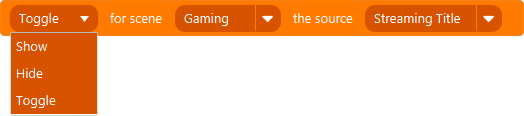
Action settings
Option
Toggle the visibility or set it to hide or show
Scene
The scene the source belongs to
Source
The source to handle
This action allows you to change the visibility of a source
Action
1.6
Available since
Set Source Filter Visibility

Action settings
Source
The source that has the filter
Filter
The filter to set
State
the state to set the filter to
This action allows you to turn a source filter on or off
Action
2.1
Available since
Set Source Image

Action settings
Source
The source to set the image for
Image
The path to the image to set
This action allows you to set the image of an image source
Action
4.0
Available since
Set Source Text

Action settings
Source
The text source that you want to set with the given text.
Text
The text you want the source to be set to.
With this action you can set a text of a text source directly. This can only be applied to a Text Source.
Note: When using this action Touch Portal will turn of the link to a file in the source in OBS.
Note: This action is only available from websocket version 5.0 and higher
Action
4.0
Available since
Set Source Video

Action settings
Source
The source to set the video on
Video
The path to the video file to set on the source
This action allows you to set a video on a video source
Action
4.0
Available since
Set Source Browser Url

Action settings
Source
The source to set the url on
Url
The url to set
This action allows you to set the url of a browser url.
Note: This will not automatically reload the browser source. You need to use the Refresh Browser action to make the source refresh.
Action
4.0
Available since
Refresh Browser Source

Action settings
Source
The source to refresh
This action allows you to refresh a browser source
Action
4.0
Available since
Set Volume

Action settings
Scene
The scene containing the source
Source
The source to change the volume of
Volume
The actual volume in percentages
This action allows you to set the volume of a scene specific source.
Action
1.6
Available since
Set Source Mute State
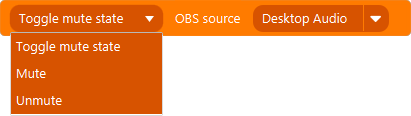
Action settings
State
The mute state to set
Source
The source to set the state to
This action allows you to mute or unmute an audio source
Action
1.6
Available since
Set Volume Source

Action settings
Source
The source to change the volume of
Volume
The actual volume in percentages
This action allows you to set the volume of a specific source.
Note: This version of the set Volume action allows you to set the volume of non-scene sources.
Action
3.0
Available since
Increase Source Volume

Action settings
Source
The source to increase the volume of
Percentage
The percentage of volume to increase
This action allows you to increase the volume in respect to the current volume
Action
1.6
Available since
Decrease Source Volume

Action settings
Source
The source to decrease the volume of
Percentage
The percentage of volume to decrease
This action allows you to decrease the volume in respect to the current volume
Action
1.6
Available since
Media Source Play / Pause

Action settings
Action
Play or pause
Media Source
The media source to play or pause
This action allows you to play and pause a media source
Note: Play does not mean it will restart the media source. To play the media source from the start be sure to use the Media Source restart action.
Action
2.3
Available since
Media Source Restart

Action settings
Media Source
The media source to restart
This action allows you to restart a media source
Action
2.3
Available since
Media Source Stop

Action settings
Media Source
The media source to stop
This action allows you to stop a media source
Action
2.3
Available since
Media Source Next

Action settings
Media Source
The media source to go to
This action allows you to go to the next media source
Action
2.3
Available since
Media Source Previous

Action settings
Media Source
The media source to go to
This action allows you to go to the previous media source
Action
2.3
Available since
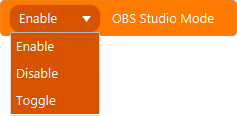
Set Studio Mode State
Action settings
Option
Enable, disable or toggle the studio mode
This action allows you to change the Studio Mode state
Action
1.9
Available since
Set Current Transition

Action settings
Transition
The transition to set as current
This action allows you to set the current transition
Action
2.1
Available since
Transition Preview To Live

This action allows you to transition to live
Action
1.6
Available since
Set Current Transition Duration

Action settings
Duration
The duration in milliseconds
This action sets the current transition duration in milliseconds.
Note: Valid duration is an integer in range 50-20000 representing the milliseconds
Action
3.2
Available since
Obs Raw Request
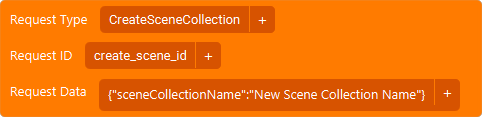
Action settings
Request Type
Read the OBS Websocket documentation for all available request types.
Request Id
An id which is returned in the resulting message. With this ID you can keep track of the send message and the received request. Touch Portal will prefix this id with 'tpc_'.
Request Data
The data in JSON format. Touch Portal will parse the text and build a JSON object with it. If it fails this action will not be executed. Ensure the JSON is properly formatted.
This action allows you to make custom requests to the OBS Websocket v5+. This allows you to do additional requests that are not (yet) implemented directly in Touch Portal.
Note: Link to the OBS Websocket v5 documentation: https://github.com/obsproject/obs-websocket/blob/master/docs/generated/protocol.md
Action
4.0
Available since
Screenshot To File

Action settings
Source
The source or scene you want to take a screenshot of
Format
Currently only BMP and PNG are supported
Quality
The quality of the resulting image, the lower the quality the lower the file size.
File
Path to a file to store the image in.
This action allows you to take a screenshot of a scene or source
Action
2.3
Available since
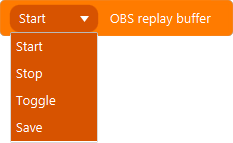
Set Replay Buffer State
Action settings
Options
The options for the replay buffer
This action allows you to start, stop, toggle or save the replay buffer
Action
1.9
Available since
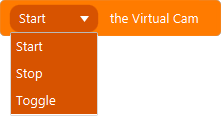
Toggle Virtual Cam
Action settings
Option
Start, Stop or Toggle
This action allows you to toggle the Virtual Cam
Action
4.0
Available since
Trigger Hotkey In Obs
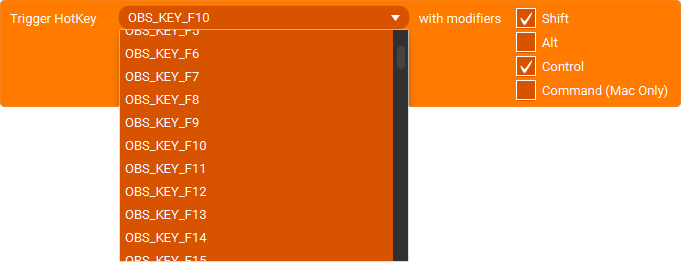
Action settings
Hotkey
The OBS hotkeys to use. These are internal OBS hotkey references.
Modifiers
Checkboxes to indicate which modifiers to use.
This action allows you to send OBS hotkeys directly to OBS without using a keyboard.
Action
4.3
Available since
Vendor Request
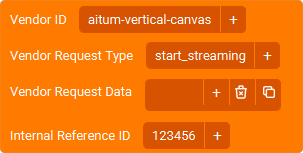
Action settings
ID
The ID of the vendor. (should be in the documentation of the OBS plugin you are using)
Request Type
The ID of the request from the vendor. (should be in the documentation of the OBS plugin you are using)
Request Data
Optional data in JSON format that is required for the specific request.
Internal Reference
The ID of the request internally used by Touch Portal which can be used to get feedback from the vendor request.
This action allows you to do a vendor request within OBS. Vendor Requests are calls you can make to other OBS plugins that have set up listeners for specific requests.
Action
4.5
Available since
OBS Events
On Recording State

Event settings
Comparator
how to compare the new state
State
the new state
This event allows you to listen for changes in the recording state
Event
1.0
Available since
On Streaming State

Event settings
Comparator
how to compare the new state
State
the new state
This event allows you to listen for changes in the streaming state
Event
1.0
Available since
On Scene Selected

Event settings
Comparator
how to compare the new state
Scene
the new active scene
This event allows you to listen for when the active scene changes
Event
1.0
Available since
On Previous Scene Selected

Event settings
Comparator
how to compare the new state
Scene
the new previous active scene
This event allows you to listen for when the previous active scene changes
Event
1.0
Available since
On Source Visibility Change

Event settings
Source
The source to listen for
State
The state to trigger on
This event allows you to listen for source visibility changes
Event
1.9
Available since
On Scene Filter Visibility Change

Event settings
Source
the source to listen for
State
the state to trigger on
This event allows you to listen for scene filters visibility changes
Event
2.2
Available since
On Source Mute State

Event settings
Source
the source to listen for
State
the state to trigger on
This event allows you to listen for audio source mute changes
Event
2.1
Available since
On Source Filter Visibility Change

Event settings
Source
the source to listen for
Filter
the filter to listen for
State
the state to trigger on
This event allows you to listen for source filter changes
Event
2.2
Available since
On Replay Buffer Status Change
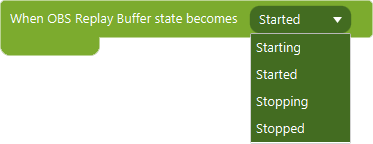
Event settings
State
the new replay buffer state
This event allows you to listen for when the replay buffer state changes
Event
1.0
Available since
On Virtual Cam State Change
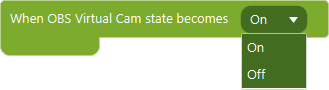
Event settings
State
the new virtual cam state
This event allows you to listen for when the virtual cam state changes
Event
1.0
Available since
Scene Output To Icon Event

Event settings
Scene
The scene to render on the button
Framerate
The framerate of rendering
Quality
The quality of the output
This event allows you to show a scene visually on a button.
Note: This feature has a big impact on the connectivity. The best is to keep the framerate update at or above 1 frame per second. To high and other actions may be delayed by it. This all depends on the device, the network and the desktop computer.
Event
2.2
Available since
On Preview Scene Selected

Event settings
Comparator
How to compare the new state
Scene
The new active scene
This event allows you to listen for when the active preview scene changes
Event
4.0
Available since
When Studio Mode Changes
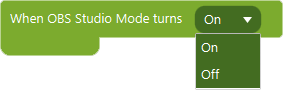
Event settings
State
On or Off
This event allows you to listen for when the studio mode changes
Event
4.0
Available since
When Custom Request Result Are Returned

Event settings
id
The id to check for of the Custom Request you made
This event allows you to listen to the result of a Custom Request by ID
Note: This event will have the result information stored in the local states.
Event
4.0
Available since
On Media Playback Event
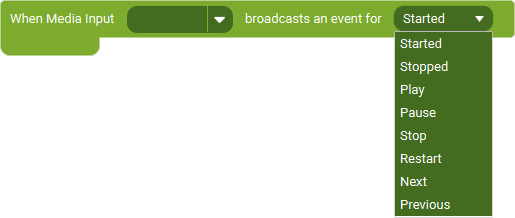
Event settings
Media Input
The Media Input (source) to listen for media playback changes
Event Type
The type of media playback change you want to listen to.
This event allows you to listen for when the playback for a media source changes.
Event
4.5
Available since
When Profile Is Changed

Event settings
Comparator
how to compare the new profile
Profile
the new active profile
This event allows you to listen for profile changes in OBS.
Note: If you have both the normal websocket and the appcompat websocket active, this will cause disconnects of the websoket itself. To fix this uninstall the app compat websocket plugin in OBS.
Event
4.1
Available since
When Scene Transition Starts / Stops Event
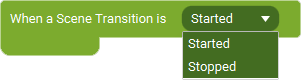
Event settings
Type
Listen to whether the transition starts or stops.
This event allows you to listen for when the transition of a scene starts or stops.
Event
4.5
Available since
On Obs Statistics Change
This event allows you to listen for when the statistics of your OBS stream/recording change.
Note: Currently this event will fire every 2 seconds with updated statistics of your current OBS stream or recording
Event
4.0
Available since
When Vendor Event Received

Event settings
Vendor ID
The ID of the vendor
Vendor event ID
The ID of the event you want to catch
This event allows you to listen for incoming feedback from a vendor in OBS.
Event
4.5
Available since