Photoshop Reference

This page describes built-in Touch Portal Photoshop actions, events and states. For other automation options, see the Touch Portal Capability Model.

Photoshop Actions

Bring Photoshop To The Front

The Action 'Bring Photoshop To The Front' as visible in Touch Portal.
This action allows you to bring the Photoshop window to the front
Action
Icon showing the Touch Portal category this item belongs to.

3.0

Available since
Touch Portal Logo used to accompany the version number this item was available from.
Green Windows Logo indicating this Action is supported on Windows.
Green macOS Logo indicating this Action is supported on macOS.
Red Linux Logo indicating this Action is NOT supported on Linux.

Set Tool

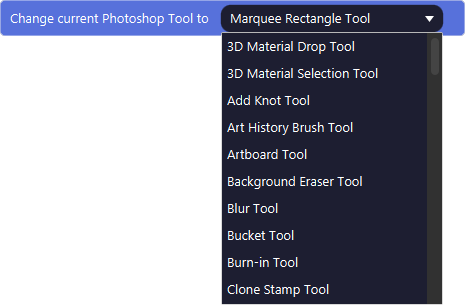
The Action 'Set Tool' as visible in Touch Portal.

Action settings

Tool
The Tool to set as the active tool in Photoshop
This action allows you to select a tool in Photoshop
Action
Icon showing the Touch Portal category this item belongs to.

3.0

Available since
Touch Portal Logo used to accompany the version number this item was available from.
Green Windows Logo indicating this Action is supported on Windows.
Green macOS Logo indicating this Action is supported on macOS.
Red Linux Logo indicating this Action is NOT supported on Linux.

Cycle Current Tools Group

The Action 'Cycle Current Tools Group' as visible in Touch Portal.
This action allows you to cycle through the tools in the current selected group of tools.
Action
Icon showing the Touch Portal category this item belongs to.

3.0

Available since
Touch Portal Logo used to accompany the version number this item was available from.
Green Windows Logo indicating this Action is supported on Windows.
Green macOS Logo indicating this Action is supported on macOS.
Red Linux Logo indicating this Action is NOT supported on Linux.

Set Main Working Color

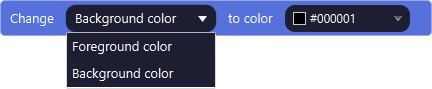
The Action 'Set Main Working Color' as visible in Touch Portal.

Action settings

Type
Choose between the background color or the foreground color
Color
The actual color to set
This action allows you to set the main working color in Photoshop.
Note: Touch Portal executes scripts through the remote control system of Photoshop, this means that if you want to change both colors it will execute the script twice with a given delay. If you want to set both the background and the foreground color at once, use the set-both-working-colors action instead.
Action
Icon showing the Touch Portal category this item belongs to.

3.0

Available since
Touch Portal Logo used to accompany the version number this item was available from.
Green Windows Logo indicating this Action is supported on Windows.
Green macOS Logo indicating this Action is supported on macOS.
Red Linux Logo indicating this Action is NOT supported on Linux.

Set Both Main Working Colors

The Action 'Set Both Main Working Colors' as visible in Touch Portal.

Action settings

Foreground Color
The color to be set as the foreground color in Photoshop
Background Color
The color to be set as the background color in Photoshop
With this action you set both colors in one go.
Note: This action has better performance in comparison with using two separate actions for changing both the foreground and the background colors.
Action
Icon showing the Touch Portal category this item belongs to.

3.0

Available since
Touch Portal Logo used to accompany the version number this item was available from.
Green Windows Logo indicating this Action is supported on Windows.
Green macOS Logo indicating this Action is supported on macOS.
Red Linux Logo indicating this Action is NOT supported on Linux.

Add New Layer

The Action 'Add New Layer' as visible in Touch Portal.
With this action you can add a new layer in Photoshop
Action
Icon showing the Touch Portal category this item belongs to.

3.0

Available since
Touch Portal Logo used to accompany the version number this item was available from.
Green Windows Logo indicating this Action is supported on Windows.
Green macOS Logo indicating this Action is supported on macOS.
Red Linux Logo indicating this Action is NOT supported on Linux.

Set Visibility Current Layer

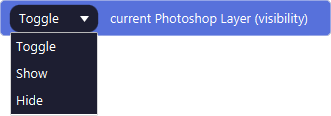
The Action 'Set Visibility Current Layer' as visible in Touch Portal.

Action settings

Action
Show, Hide or Toggle the visibility of the layer
With this action you can set the visibility to show or hide. You can also toggle the state.
Action
Icon showing the Touch Portal category this item belongs to.

3.0

Available since
Touch Portal Logo used to accompany the version number this item was available from.
Green Windows Logo indicating this Action is supported on Windows.
Green macOS Logo indicating this Action is supported on macOS.
Red Linux Logo indicating this Action is NOT supported on Linux.

Lock / Unlock Current Layer

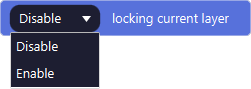
The Action 'Lock / Unlock Current Layer' as visible in Touch Portal.

Action settings

Action
Lock or Unlock the layer
With this action you can lock and unlock the current layer
Action
Icon showing the Touch Portal category this item belongs to.

3.0

Available since
Touch Portal Logo used to accompany the version number this item was available from.
Green Windows Logo indicating this Action is supported on Windows.
Green macOS Logo indicating this Action is supported on macOS.
Red Linux Logo indicating this Action is NOT supported on Linux.

Set Opacity Current Layer

The Action 'Set Opacity Current Layer' as visible in Touch Portal.

Action settings

Opacity
The percentage of the opacity
With this action you can set the opacity of the current layer
Action
Icon showing the Touch Portal category this item belongs to.

3.0

Available since
Touch Portal Logo used to accompany the version number this item was available from.
Green Windows Logo indicating this Action is supported on Windows.
Green macOS Logo indicating this Action is supported on macOS.
Red Linux Logo indicating this Action is NOT supported on Linux.

Set Fill Current Layer

The Action 'Set Fill Current Layer' as visible in Touch Portal.

Action settings

Fill
The percentage of the fill
With this action you can set the fill of the current layer
Action
Icon showing the Touch Portal category this item belongs to.

3.0

Available since
Touch Portal Logo used to accompany the version number this item was available from.
Green Windows Logo indicating this Action is supported on Windows.
Green macOS Logo indicating this Action is supported on macOS.
Red Linux Logo indicating this Action is NOT supported on Linux.

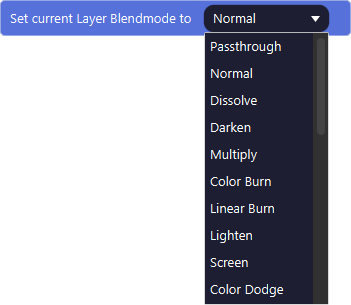
Set Blendmode Current Layer

The Action 'Set Blendmode Current Layer' as visible in Touch Portal.

Action settings

Blendmode
The blendmode to set for the current layer.
With this action you can set the blendmode of the current layer
Action
Icon showing the Touch Portal category this item belongs to.

3.0

Available since
Touch Portal Logo used to accompany the version number this item was available from.
Green Windows Logo indicating this Action is supported on Windows.
Green macOS Logo indicating this Action is supported on macOS.
Red Linux Logo indicating this Action is NOT supported on Linux.

Set Text Content Current Layer

The Action 'Set Text Content Current Layer' as visible in Touch Portal.

Action settings

Text
The text to set on the current selected Text Layer
With this action you can set the text of the current selected Text layer
Action
Icon showing the Touch Portal category this item belongs to.

3.0

Available since
Touch Portal Logo used to accompany the version number this item was available from.
Green Windows Logo indicating this Action is supported on Windows.
Green macOS Logo indicating this Action is supported on macOS.
Red Linux Logo indicating this Action is NOT supported on Linux.

Deselect All Selected Layers

The Action 'Deselect All Selected Layers' as visible in Touch Portal.
With this action you can deselect all selected layer
Action
Icon showing the Touch Portal category this item belongs to.

3.0

Available since
Touch Portal Logo used to accompany the version number this item was available from.
Green Windows Logo indicating this Action is supported on Windows.
Green macOS Logo indicating this Action is supported on macOS.
Red Linux Logo indicating this Action is NOT supported on Linux.

Remove Current Selected Layer

The Action 'Remove Current Selected Layer' as visible in Touch Portal.
With this action you can remove the selected layer.
Action
Icon showing the Touch Portal category this item belongs to.

3.0

Available since
Touch Portal Logo used to accompany the version number this item was available from.
Green Windows Logo indicating this Action is supported on Windows.
Green macOS Logo indicating this Action is supported on macOS.
Red Linux Logo indicating this Action is NOT supported on Linux.

Set Current Brush Radius (smart)

The Action 'Set Current Brush Radius (smart)' as visible in Touch Portal.

Action settings

Radius
The radius of the selected Brush should be set to.
With this action you can set the radius of the currently selected Brush
Action
Icon showing the Touch Portal category this item belongs to.

3.0

Available since
Touch Portal Logo used to accompany the version number this item was available from.
Green Windows Logo indicating this Action is supported on Windows.
Green macOS Logo indicating this Action is supported on macOS.
Red Linux Logo indicating this Action is NOT supported on Linux.

Set Current Brush Hardness (smart)

The Action 'Set Current Brush Hardness (smart)' as visible in Touch Portal.

Action settings

Radius
The hardness of the selected Brush should be set to.
With this action you can set the hardness of the currently selected brush
Action
Icon showing the Touch Portal category this item belongs to.

3.0

Available since
Touch Portal Logo used to accompany the version number this item was available from.
Green Windows Logo indicating this Action is supported on Windows.
Green macOS Logo indicating this Action is supported on macOS.
Red Linux Logo indicating this Action is NOT supported on Linux.

Resize Image

The Action 'Resize Image' as visible in Touch Portal.

Action settings

Width
The new width of the image
Height
The new height of the image
With this action you can change the image size of the image.
Action
Icon showing the Touch Portal category this item belongs to.

3.0

Available since
Touch Portal Logo used to accompany the version number this item was available from.
Green Windows Logo indicating this Action is supported on Windows.
Green macOS Logo indicating this Action is supported on macOS.
Red Linux Logo indicating this Action is NOT supported on Linux.

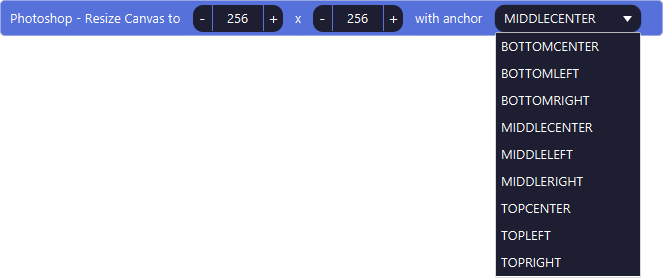
Resize Canvas

The Action 'Resize Canvas' as visible in Touch Portal.

Action settings

Width
The new width of the image
Height
The new height of the image
Anchor
The anchor point from which you want to resize the canvas.
With this action you can change the canvas size of the image.
Action
Icon showing the Touch Portal category this item belongs to.

3.0

Available since
Touch Portal Logo used to accompany the version number this item was available from.
Green Windows Logo indicating this Action is supported on Windows.
Green macOS Logo indicating this Action is supported on macOS.
Red Linux Logo indicating this Action is NOT supported on Linux.

Trim Image

The Action 'Trim Image' as visible in Touch Portal.

Action settings

Top
Option to include the top of the image for trimming.
Right
Option to include the right of the image for trimming.
Bottom
Option to include the bottom of the image for trimming.
Left
Option to include the left of the image for trimming.
This allows you to trim the image on four sides by removing the transparent colums or rows.
Note: Trimming is done with only full rows or columns of fully transparent visible pixels. If hidden layers have non-transparent pixels they will be cut from the image.
Action
Icon showing the Touch Portal category this item belongs to.

4.0

Available since
Touch Portal Logo used to accompany the version number this item was available from.
Green Windows Logo indicating this Action is supported on Windows.
Green macOS Logo indicating this Action is supported on macOS.
Red Linux Logo indicating this Action is NOT supported on Linux.

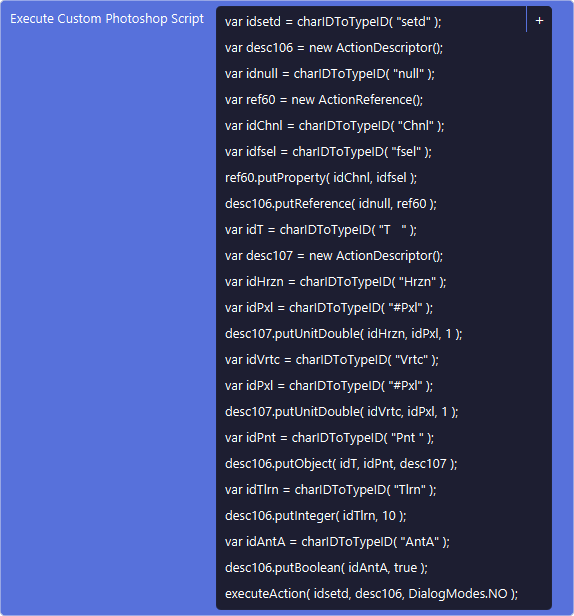
Execute Custom Photoshop Script

The Action 'Execute Custom Photoshop Script' as visible in Touch Portal.

Action settings

Script
The script to be passed to Photoshop to execute
This action allows you to write your own script and execute it within Photoshop
Note: Documentation for Photoshop scripting can be found here: https://helpx.adobe.com/photoshop/using/scripting.html
Action
Icon showing the Touch Portal category this item belongs to.

4.0

Available since
Touch Portal Logo used to accompany the version number this item was available from.
Green Windows Logo indicating this Action is supported on Windows.
Green macOS Logo indicating this Action is supported on macOS.
Red Linux Logo indicating this Action is NOT supported on Linux.

Photoshop Events

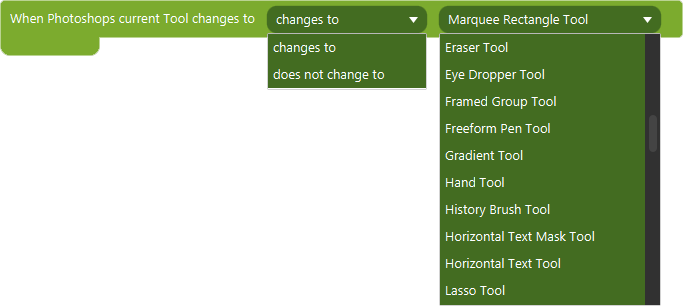
When Tool Changes

The Event 'When Tool Changes' as visible in Touch Portal.

Event settings

Comparator
how to compare the new selected tool against the given tool
Tool
The tool to compare the new selected tool with using the comparator
This events allows you to listen to when the tool is changed
Event
Icon showing the Touch Portal category this item belongs to.

3.0

Available since
Touch Portal Logo used to accompany the version number this item was available from.
Green Windows Logo indicating this Event is supported on Windows.
Green macOS Logo indicating this Event is supported on macOS.
Red Linux Logo indicating this Event is NOT supported on Linux.

When Current Tool Radius Changes

The Event 'When Current Tool Radius Changes' as visible in Touch Portal.

Event settings

Comparator
How to compare the new selected radius against the given radius
Tool
The radius to compare the new selected radius with using the comparator
This events allows you to listen to when the radius is changed
Event
Icon showing the Touch Portal category this item belongs to.

3.0

Available since
Touch Portal Logo used to accompany the version number this item was available from.
Green Windows Logo indicating this Event is supported on Windows.
Green macOS Logo indicating this Event is supported on macOS.
Red Linux Logo indicating this Event is NOT supported on Linux.

When Current Tool Hardness Changes

The Event 'When Current Tool Hardness Changes' as visible in Touch Portal.

Event settings

Comparator
How to compare the new selected hardness against the given hardness
Tool
The hardness to compare the new selected hardness with using the comparator
This events allows you to listen to when the hardness of a brush is changed
Event
Icon showing the Touch Portal category this item belongs to.

3.0

Available since
Touch Portal Logo used to accompany the version number this item was available from.
Green Windows Logo indicating this Event is supported on Windows.
Green macOS Logo indicating this Event is supported on macOS.
Red Linux Logo indicating this Event is NOT supported on Linux.

When Current Layer Visibility Changes

The Event 'When Current Layer Visibility Changes' as visible in Touch Portal.

Event settings

State
The visibility of the layer to check for.
This events allows you to listen to when the current layer becomes visible or hidden
Event
Icon showing the Touch Portal category this item belongs to.

3.0

Available since
Touch Portal Logo used to accompany the version number this item was available from.
Green Windows Logo indicating this Event is supported on Windows.
Green macOS Logo indicating this Event is supported on macOS.
Red Linux Logo indicating this Event is NOT supported on Linux.

When Current Layer Locked State Changes

The Event 'When Current Layer Locked State Changes' as visible in Touch Portal.

Event settings

State
The locked state of the layer to check for.
This events allows you to listen to when the current layer becomes locked or unlocked
Event
Icon showing the Touch Portal category this item belongs to.

3.0

Available since
Touch Portal Logo used to accompany the version number this item was available from.
Green Windows Logo indicating this Event is supported on Windows.
Green macOS Logo indicating this Event is supported on macOS.
Red Linux Logo indicating this Event is NOT supported on Linux.