Logic Reference
This page describes built-in Touch Portal Logic actions, events and states. For other automation options, see the Touch Portal Capability Model.
Logic Actions
Logic If Statement Extended
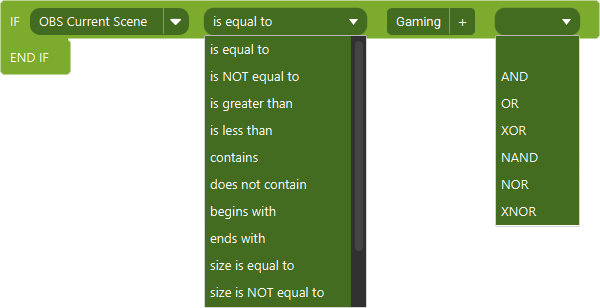
Action settings
State
the state you want to use to compare with
Comparator
the type of comparator you want the state to compare the value with. Depending on the type of state you will be presented with different options.
Value
the value to compare the state with
Combinator
this option allows you to string multiple lines of criteria together
This logic action allows you to run actions based on specific criteria.
Note: When using the combinator Touch Portal will evaluate the situation line by line. This means that it takes the previous result and the compares that with the new compare line. So if you have 3 lines, first it will check the first, then it will check the second and uses the combinator to get a result. For the third line it uses the combinator between that line and the previous result.
Action

3.0
Available since


Logic If Statement
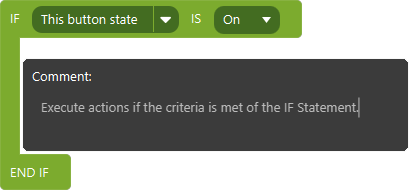
Action settings
State
the state you want to use to compare with
Comparator
the type of comparator you want the state to compare the value with
Value
the value to compare the state with
This logic action allows you to run actions based on specific criteria.
Note: The IF statement logic action is superceeded by the IF statement (advanced). This IF statement will keep working but will not get updates. The new advanced IF statement will be kept up to date.
Action
1.10
Available since
Logic Else

This action can be used together with logic IF actions to create the flow of actions to do when the IF does not meet the criteria.
Action
1.10
Available since
If File Statement
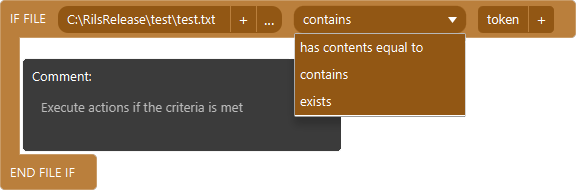
Action settings
File
The file to use in this logic statement.
Comparator
Options on how you want to compare the file.
Text
The text to compare the file with. If the option 'exists' is chosen, this option will not appear.
This action allows you to add logic based on the specified file. This allows you to check if a given file exists, has content that equals or if it contains a given text. If it meets the criteria this If File statement will continue with executing actions within the scope of this If Statement. If not it will continue with the actions after the scope of this IF File Statement. If the file cannot be accessed it will not meet the criteria and will act accordingly.
Note: This action expects the file to be in UTF-8 encoding.
Action
2.2
Available since
Logic Repeat X Times
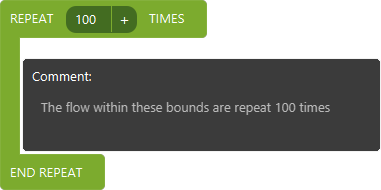
Action settings
Counter
the amount of times it should repeat executing the flow of actions within its context.
This logic action allows you to create a repeating loop that will execute the flow of actions within its context x amount of times
Note: The maximum number allowed is 2147470000
Action
2.1
Available since
Execute Flow

Action settings
Flow
The Flow object to execute
This action allows you to execute a predefined Flow.
Action
2.3
Available since
Stop Executing Actions In Current Flow

This action allows you to stop the current flow of actions to be stopped. All actions after this will be dropped and not executed. Every collection of actions (On Press, On Event etc.) within Touch Portal is seen as a flow. The Flow object is also a flow of actions.
Note: If you use this action in a Flow, it will stop that Flow but will continue the sequence of actions from which the Flow was triggered.
Action
2.2
Available since
Logic Events
Dynamic Text Updater

Event settings
Text
the text to update the button with
This event will update the button text each 500ms with the given text. If using Dynamic Text Variables, they will be evaluated each iteration and should always show the up to date value.
Event
2.1
Available since