System & Apps Reference
This page describes built-in Touch Portal System & Apps actions, events and states. For other automation options, see the Touch Portal Capability Model.
System & Apps Actions
Activate Application (foreground)
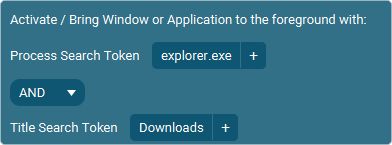
Action settings
Token
Part of the full process.
This action allows you to bring an application on your computer to the foreground (activate)
Note: To get an overview of all current running processes to determine what the token is you need to use to activate the specific application check out the Page Navigation options as it has a button to show all currently running processes. Use this list to determine what token (part of the process path) you need to use.
Action

3.0
Available since


Close Application

Action settings
Type
A soft close will send a close request to the process. It depends on the application how it handles this. Usually it will normally close the application and ask you to save whatever is not saved yet. Forced Close means the process is killed instantly no matter the state. It will not follow the normal close procedure.
Token
The process file name. This needs to include the .exe part.
This action allows you to close an application on your computer.
Note: To get an overview of all current running processes to determine what the token is you need to use to activate the specific application check out the Page Navigation options as it has a button to show all currently running processes. Use this list to determine what token (part of the process path) you need to use.
Action
3.0
Available since
Desktop Message Popup - Ok

Action settings
Text
The message to show to the user..
This action allows you to show a popup window on your desktop with an informative message.
Note: The popup is part of Touch Portal and due to this, Touch Portal will get focus in this case. Touch Portal tries to put the focus back again to the original window but this is not always possible.
Action
4.5
Available since
Desktop Message Popup - User Input

Action settings
Text
The message to show to the user before the input field.
Value
The value to store the user input in.
This action allows you to show a popup window on your desktop which requires you to input a message. This message is then stored in a value you can use in your sequence of actions.
Note: The popup is part of Touch Portal and due to this, Touch Portal will get focus in this case. Touch Portal tries to put the focus back again to the original window but this is not always possible.
Action
4.5
Available since
Desktop Message Popup - Yes / No

Action settings
Text
The message to show to the user for the yes or no popup.
Value
The value to store the user input in.
This action allows you to show a popup window on your desktop which requires you to answer with yes or no. This result (1 or 0) is then stored in a value you can use in your sequence of actions.
Note: The popup is part of Touch Portal and due to this, Touch Portal will get focus in this case. Touch Portal tries to put the focus back again to the original window but this is not always possible.
Action
4.5
Available since
Get Location Region Image Match
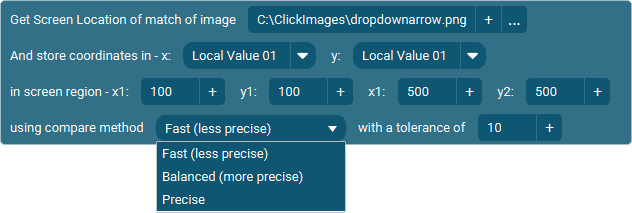
Action settings
Search Image
The matching image to search for in the defined region on screen.
Value X
The value to store the X component of the found location on screen in.
Value Y
The value to store the Y component of the found location on screen in.
Region x1
The left of the region to search in. This region is used to search for the Search Image.
Region y1
The top of the region to search in. This region is used to search for the Search Image.
Region x2
The right of the region to search in. This region is used to search for the Search Image.
Region y2
The bottom of the region to search in. This region is used to search for the Search Image.
Method
The method of matching to use. We advise to use the Fast method wherever you can, it is more forgiving, faster and works for 99% of the situations fine.
Tolerance
This value describes the overal difference between the Search Image pixels and the screen pixels. The higher the tolerance, the bigger chance the location matches the image but may not be the same, the lower the value the more precise the pixels need to be. We advise to use the default of 10 as this will be a bit forgiving but is precise enough to ensure only the correct part of screen matches.
This action allows you to get the location on screen that matches the given image. You specify an image to search for in a preselected region on your desktop screen.
Note: On macOS you need to enable the screenrecording permission to allow this action to work.
Action
4.5
Available since
Get Screen Pixel Color
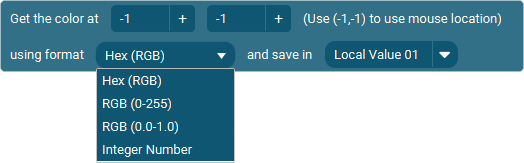
Action settings
Location X
The X component of the pixel location on screen to get the color from.
Location Y
The Y component of the pixel location on screen to get the color from.
Format
The format of the color retrieved.
Value
The value to store the retrieved formatted color in.
This action allows you to get the color of the pixel at the location on screen.
Note: On macOS you need to enable the screenrecording permission to allow this action to work.
Action
4.5
Available since
Get Window Info
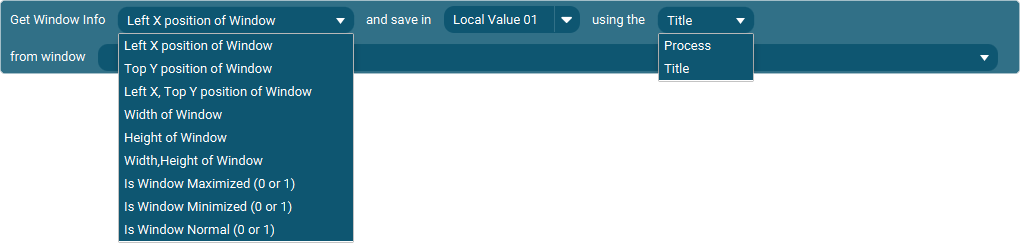
Action settings
Info
The piece of information you want to get
Value
The value to save the information in.
Using
Using the proces or the title (for more precize selection within the same process)
Window
The process and window combination to get the information from.
This action allows you to get the information of a specific window based on the title of the window or the process name. The data that can be retrieved consists of the x and y coordinates, the width and height and the state.
Action
4.5
Available since
Get Window Info From Title (partial)

Action settings
Info
The piece of information you want to get
Value
The value to save the information in.
Title
The partial of a window title to search for an existing process and title combination.
This action allows you to get the information of a specific window based on the title of the window. The data that can be retrieved consists of the x and y coordinates, the width and height and the state.
Action
4.5
Available since
Lock Windows

This action allows you to lock Windows
Action
1.0
Available since
Shutdown Windows

This action allows you to shut down Windows
Action
1.0
Available since
System & Apps Events
When Application Process Or Window Title Changes

This event allows you to listen for the moment you change the current active and focused application process and / or title.
Event
4.5
Available since
When Device Connects

This event allows you to listen for when a new device is connected. This event is only available as a global Event.
Event
4.5
Available since