Keyboard Reference
This page describes built-in Touch Portal Keyboard actions, events and states. For other automation options, see the Touch Portal Capability Model.
Keyboard Actions
Low Level Key Press

Action settings
Keys
The key or key combination that is pressed down in order and then released in reversed order.
Time
The time between the last key pressed down and the first key being released
Keyboard Layout
the keyboard layout to use. This allows for country and language specific keys.
This action allows you to do low level key presses. While still software driven key presses they are triggered on a lower level in the OS than the virtual key presses. Low Level Key presses can be used with keyboards from different countries to do language specific key presses as well.
Note: Both Touch Portal and the application you want to control with Key Presses need to be in the same Sandbox on Windows. Either both run in Admin mode or both in User mode.
Note: All keys listed are the physical keys that are available for a keyboard layout. Some keys are only available to specific regions or specific keyboards and may not be present on your specific keyboard. Country layout specific keys are an example but also special keys only available for specific sold keyboards like the physical smaller-than keys on some European keyboards.
Action

2.2
Available since


Virtual Key Press

Action settings
Keys
The key or key combination that is pressed down in order and then released in reversed order.
Time
The time between the last key pressed down and the first key being released
This action allows you to do virtual key presses. Virtual key presses are software simulated key presses requested to the OS.
Note: Virtual keys can be blocked by the application (or game) you want to use it for. Use the Low Level Key presses instead.
Note: Both Touch Portal and the application you want to control with Key Presses need to be in the same Sandbox on Windows. Either both run in Admin mode or both in User mode.
Note: Virtual Key Presses do not have country specific keys and follow the international keyboards. If you want to use key presses with for example a German keyboard layout, you should use the Low Level Key Presses action instead.
Action
1.0
Available since
Hold Key Press
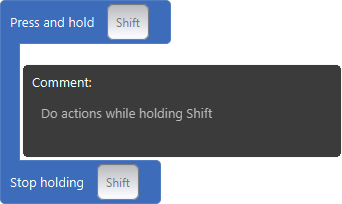
Action settings
Keys
The keys that will be pressed down in order and release at the end in reversed order.
Keyboard Layout
The keyboard layout to use. This allows for country and language specific keys.
This action allows you to keep pressing a key or a combination of keys while execution other actions during that pressing down.
Action
2.2
Available since
Hold Key Press (macos)
Action settings
Keys
The keys that will be pressed down in order and release at the end in reversed order.
Keyboard Layout
The keyboard layout to use. This allows for country and language specific keys.
This action allows you to keep pressing a key or a combination of keys while execution other actions during that pressing down.
Action
4.5
Available since
Write Text
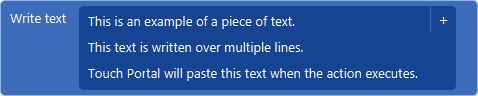
Action settings
Text
The text that will be written when the action is executed.
This action allows you to write text.
Note: This action copies the given text to the clipboard and will then do a general Paste action to apply the text.
Action
1.0
Available since