Run, Execute & Open Reference
This page describes built-in Touch Portal Run, Execute & Open actions, events and states. For other automation options, see the Touch Portal Capability Model.
Run, Execute & Open Actions
Start / Run Application

Action settings
Special Case: Launching Steam Games
Launching Steam games is not possible directly using this Action. To launch a Steam game you need to use the steam id and use the Open URL action instead from the Navigation category like this:

Special Case: Launching Epic Games
Launching Epic games is not possible in the normal way just like Steam games. To launch an Epic game you need to do similar steps as with the steam option. First you need to open the properties of the normal shortcut on your desktop to that game. It will hold an url that you need to copy and use on an Open URL action instead from the Navigation category.
Special Case: Windows Apps
Windows apps are a special type of application. They are different from normal executables. Touch Portal has no trouble opening such applications but finding them can be difficult. Here is how you run windows Apps with Touch Portal:
- Open a file explorer
- Enter this value: shell:AppsFolder
- This will open the applications folder.
- Pick the application you want to start
- Right mouse click and choose "Create Shortcut"
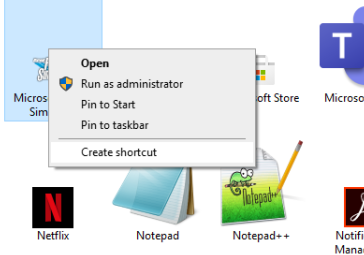
- Now use this shortcut in the Run shortcut action
What to do when the application is not launched?
Some applications will not start up using this action. To be able to start such an application, create a shortcut to the application and use the Run-a-shortcut-action instead and point it to your created shortcut.

1.0
Available since


Open File

Action settings
2.2
Available since
Open Folder

Action settings
1.3
Available since
Run Batch Script

Action settings
1.0
Available since
Run Powershell Script

Action settings
Open Windows Restrictions
Touch Portal requires that the execution policies of Powershell are unrestricted. By default Windows sets it on restricted so we need to change that. Do the following:
- Open a Command Prompt in Windows (cmd.exe)
- Type "Powershell" and press enter.
- Powershell is now started. When in Powershell run the following two commands
- Set-ExecutionPolicy -Scope CurrentUser -ExecutionPolicy Bypass -Force;
- Set-ExecutionPolicy -Scope CurrentUser -ExecutionPolicy Unrestricted -Force;
- These two options allow you to run any script (unrestricted) and will not prompt a message with the question whether it is safe to run your selected script (bypass)
1.7
Available since
Launch Apps & Games

Action settings
4.2
Available since
Run Apple Script

Action settings
3.0
Available since
Execute Script
Action settings
3.1
Available since