Audio, Music & Media Reference
This page describes built-in Touch Portal Audio, Music & Media actions, events and states. For other automation options, see the Touch Portal Capability Model.
Audio, Music & Media Actions
Play Audio File Advanced
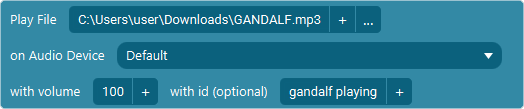
Action settings
File
The file to play. This can be an wav or mp3 file.
Output
The output you want the file to be played on.
Volume
The volume to play the audio file at.
Id
An optional id to give to this audio file. This can be used in the 'Stop Playing all Audio with Id'-action.
Fade in time
The time it takes to fade in the song to the given volume. 0 if no fade in wanted.
Fade curve
The curve used to fade in the time. This will not be used if the fade in time is 0.
This action allows you to play an audio files (wav and mp3) over a chosen audio output. The fade in components are available from version 4.2 of Touch Portal.
Note: Not all mp3 formats are supported. If the mp3 does not play, we suggest to re-encode it using free online services. These services usually use the most mainstream mp3 encoding.
Note: If you experience playback issues with mp3 files that have a lenght of less than 1 second, convert them to a wav. Playing mp3s which length is smaller than 1 second can cause issue with the playback library.
Action

3.1
Available since


Play Audio File

Action settings
File
The file to play. This can be an wav or mp3 file.
Volume
The volume to play the audio file at.
This action allows you to play an audio file (wav and mp3) over the general audio output. We advise you to use the advanced version of this action when using Windows.
Note: Not all mp3 formats are supported. If the mp3 does not play, we suggest to re-encode it using free online services. These services usually use the most mainstream mp3 encoding. It might be that even then it does not properly play, if so, convert it to an wav file.
Action
1.0
Available since
Stop All Playing Audio

This action will stop all audio played by Touch Portal.
Note: This will only stop audio started by the audio actions of Touch Portal. It will not stop audio from plugins or external audio applications.
Action
1.0
Available since
Stop Audio With Id

Action settings
Id
The id of the audio to stop. This will stop all audio files with the same id.
This action allows you to stop specific audio which was started by the advance audio play action and was started with a given id
Action
4.0
Available since
Media Keys - Toggle Play / Pause

This action allows you to play, resume or pause a track on the current audio application active on the OS.
Note: This system uses virtual media keys send to the OS. Not all application may support this. The OS settings can interfere with the functionality.
Note: Some application may catch all media key actions. Browsers such as Google can be set up like this. When this is set, it means no other applications will ever receive the media key actions.
Action
1.0
Available since
Set Volume Audio With Id

Action settings
Id
The id of the audio to stop. This will stop all audio files with the same id.
Volume
The volume of the file. Keep in mind that this is relative to the audio level of the device this is played on.
This action allows you to set the volume of an audio file played by Touch Portal with the given ID.
Action
4.2
Available since
Stop And Fade Audio With Id
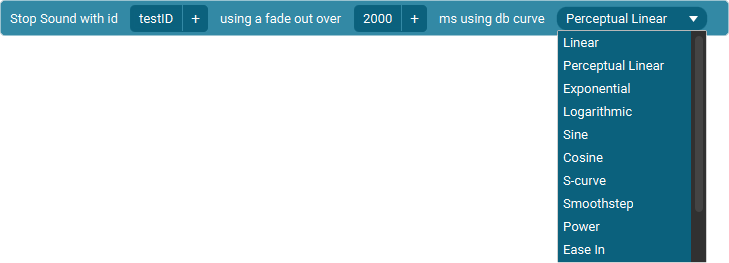
Action settings
Id
The id of the audio to stop and fade. This will stop and fade all audio files with the same id.
Time
The duration of the fade in milliseconds
Curve
The curve to use for the fade.
This action allows you to stop and fade out a specific audio which was started by the advance audio play action and was started with a given id
Action
4.2
Available since
Media Keys - Stop

This action allows you to stop a track on the current audio application active on the OS.
Note: This system uses virtual media keys send to the OS. Not all application may support this. The OS settings can interfere with the functionality.
Note: Some application may catch all media key actions. Browsers such as Google can be set up like this. When this is set, it means no other applications will ever receive the media key actions.
Action
1.0
Available since
Media Keys - Next Track

This action allows you to go to the next track on the current audio application active on the OS.
Note: This system uses virtual media keys send to the OS. Not all application may support this. The OS settings can interfere with the functionality.
Note: Some application may catch all media key actions. Browsers such as Google can be set up like this. When this is set, it means no other applications will ever receive the media key actions.
Action
1.0
Available since
Media Keys - Previous Track

This action allows you to go to the previous track on the current audio application active on the OS.
Note: This system uses virtual media keys send to the OS. Not all application may support this. The OS settings can interfere with the functionality.
Note: Some application may catch all media key actions. Browsers such as Google can be set up like this. When this is set, it means no other applications will ever receive the media key actions.
Action
1.0
Available since
Media Keys - Volume Up

This action allows you to get the volume 1 percent up on the current active media application on your OS, when no application is listening then this will change the volume of the OS itself.
Note: This system uses virtual media keys send to the OS. Not all application may support this. The OS settings can interfere with the functionality.
Note: Some application may catch all media key actions. Browsers such as Google can be set up like this. When this is set, it means no other applications will ever receive the media key actions.
Action
1.0
Available since
Media Keys - Volume Down

This action allows you to get the volume 1 percent down on the current active media application on your OS, when no application is listening then this will change the volume of the OS itself.
Note: This system uses virtual media keys send to the OS. Not all application may support this. The OS settings can interfere with the functionality.
Note: Some application may catch all media key actions. Browsers such as Google can be set up like this. When this is set, it means no other applications will ever receive the media key actions.
Action
1.0
Available since
Media Keys - Volume Mute

This action allows you to mute the volume on the current active media application on your OS, when no application is listening then this will change the volume of the OS itself.
Note: This system uses virtual media keys send to the OS. Not all application may support this. The OS settings can interfere with the functionality.
Note: Some application may catch all media key actions. Browsers such as Google can be set up like this. When this is set, it means no other applications will ever receive the media key actions.
Action
1.0
Available since
Set Volume Of The Default Windows Audio Source

Action settings
Output Type
Default output or input audio source to set the volume of.
Change
The volume in percentage.
This action allows you to set the volume of the default windows audio source (both input as output)
Action
3.0
Available since
Set Volume Of Windows Audio Source

Action settings
Output Type
Output or Input. Changing this will show the output or input device available on Windows.
Source
The Windows audio source you want to change the volume of
Change
The volume in percentage.
This action allows you to set the volume of a given windows audio source (both input as output)
Note: Touch Portal links this action to the unique ID of the windows audio source. After Windows updates and other situations internal ids can change and Touch Portal cannot link anymore. When this happens you need to relink the audio source to ensure it is linked to the new id.
Action
2.3
Available since
Increase / Decrease Volume Windows Audio Source

Action settings
Output Type
Output or Input. Changing this will show the output or input device available on Windows.
Source
The Windows audio source you want to change the volume of
Change
The change in percentage.
This action allows you to increase or decrease the specific Windows audio source.
Note: Touch Portal links this action to the unique ID of the windows audio source. After Windows updates and other situations internal ids can change and Touch Portal cannot link anymore. When this happens you need to relink the audio source to ensure it is linked to the new id.
Action
2.3
Available since
Toggle Mute State Of Windows Audio Source

Action settings
Mute Action
Toggle, mute or unmute the current mute state of the give windows audio source.
Source Type
The input or output devices to show in the list of selectable sources.
Sources
The source to select.
This action allows you to toggle, set or unset the mute state of a given windows audio source.
Action
2.3
Available since
Set Volume Of Current Output On Macos

Action settings
Volume
The volume to set the output to
This action allows you to set the volume of the current selected speaker (output) on MacOS
Action
3.0
Available since
Set Volume Of Current Microphone On Macos

Action settings
Volume
The volume to set the mic to
This action allows you to set the volume of the current selected microphone (input) on MacOS
Action
3.0
Available since
Audio, Music & Media Events
When Media Finishes Playing

Event settings
ID
The ID of the audio file played with the advanced play action.
This event allows you to listen for when an audio file is done playing that you triggered.
Note: This will trigger either when the song is stopped by the stop actions or when it ends naturally.
Event
4.3
Available since
When Volume Specific Audio Device Changes

Event settings
Type
output or input device selection
Param
the actual device to select
Comparator
how you want to compare the new volume
Value
the value you want to compare the new volume to
This event allows you to act on volume changes of specific audio devices
Event
1.0
Available since
When Windows Default Audio Device Mute State Changes

Event settings
Source Type
The input or output devices to listen for.
Mute State
The state to listen for
This event will listen to the mute state of the current Windows audio source
Event
3.0
Available since
When Windows Audio Source Mute State Changes

Event settings
Source Type
The input or output devices to show in the list of selectable sources.
Sources
The source to select.
Mute State
The state to listen for
This event will listen to the mute state of the given Windows audio source
Event
3.0
Available since