Mouse Reference
This page describes built-in Touch Portal Mouse actions, events and states. For other automation options, see the Touch Portal Capability Model.
Mouse Actions
Click Region Image Match
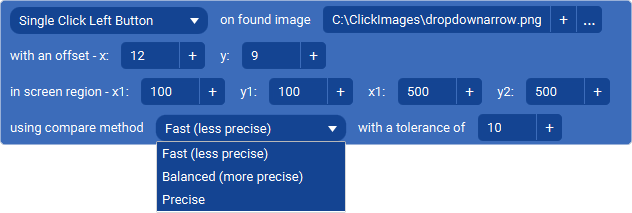
Action settings
Click Method
The type of mouse click you want to perform on the location
Match Image
The PNG file that is used to match. This action will test the region to check if this image is present.
Offset X
The X offset of the click location relative to the top left location of the found Match Image.
Offset Y
The Y offset of the click location relative to the top left location of the found Match Image.
Region X1
The x coordinate of the left top corner of the region to search on the screen.
Region Y1
The y coordinate of the left top corner of the region to search on the screen.
Region X2
The x coordinate of the bottom right corner of the region to search on the screen.
Region Y2
The y coordinate of the bottom right corner of the region to search on the screen.
Compare Method
This is the method to use when comparing the Match Image in the region. The faster method is less precise but often precision is not required and performance is key.
Tolerance
This is the amount of deviation a pixel can be between the Match Image and the region pixel.
This action allows you to click on a location in a region that matches the given image
Note: On macOS to be able to use this action you need to give permission for Touch Portal for screen recording.
Note: The bigger the region, the bigger the match image, the slower this function works. Older computers might also have a bad impact on the performance.
Note: The action will put the mouse cursor right back to the original location
Note: Important to know is that the image match does a pixel match. This means when you want to target something part of a glass interface that it will not work because the background behind the glass will affect the outcome.
Action

4.5
Available since


Mouse Click

Action settings
Method
Default means it uses virtual software simulation. Low Level means it uses mouse clicks injected at the lowest layer of the OS to simulate a mouse click.
Click Type
The mouse button to use for the click
Duration
The time in milliseconds to keep pressing the mouse button down before releasing it.
Location
The location on the screen where you want to click. Multiple screens resolutions are added to the main screen to have the location on another screen.
Use the mouse position
If this is checked it means it will use the location of where the mouse currently is when the action is executed. The action will not move the mouse.
This action allows you to click with the mouse on a specific location
Note: You can press the 'm'-key to get the location of the mouse at that time. Be sure that the popup window is the active window when you press the key as otherwise it will not get the location.
Action
2.1
Available since
Mouse Click (raw
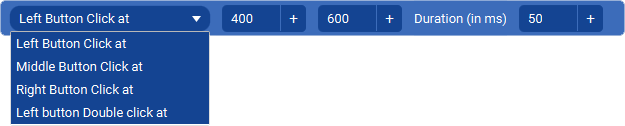
Action settings
Click Type
The mouse button to use for the click
Location X
The X component of the location on screen where you want to click. Multiple screens resolutions are added to the main screen to have the location on another screen.
Location Y
The Y component of the location on screen where you want to click. Multiple screens resolutions are added to the main screen to have the location on another screen.
Duration
The time in milliseconds to keep pressing the mouse button down before releasing it.
This action allows you to click with the mouse on a specific location using states and such as well.
Action
4.5
Available since
Move Mouse

Action settings
x
The x value of the location
y
The y value of the location
Method
Relative will move the mouse away from the current mouse position with the given x and y values, Absolute will move the mouse to the given location on screen.
This action allows you to move the mouse to a specific location on your screen(s)
Action
4.0
Available since
Drag Mouse

Action settings
start x
The x value of the drag location start
start y
The y value of the drag location start
end x
The x value of the drag location end
end y
The y value of the drag location end
Method
Relative will drag the mouse away from the current mouse position with the given x and y drag end values, Absolute will drag the mouse from and to the given locations on screen.
speed
The speed of the drag process in milliseconds, 0 will be instant.
This action allows you to drag the mouse from and to specific locations on your screen(s)
Action
4.1
Available since
Get Mouse Location

Action settings
value X
The value to store the X component of the mouse location in.
value Y
The value to store the Y component of the mouse location in.
This action allows you to get the mouse location and store it in values.
Action
4.5
Available since