Twitch Reference

This page describes built-in Touch Portal Twitch actions, events and states. For other automation options, see the Touch Portal Capability Model.

Twitch Actions

Send Chat Message

The Action 'Send Chat Message' as visible in Touch Portal.

Action settings

Message
the message to send
This action allows you to send a message to your channel.
Action
Icon showing the Touch Portal category this item belongs to.

1.10

Available since
Touch Portal Logo used to accompany the version number this item was available from.
Green Windows Logo indicating this Action is supported on Windows.
Green macOS Logo indicating this Action is supported on macOS.
Green Linux Logo indicating this Action is supported on Linux.

Send Chat Message To Channel

The Action 'Send Chat Message To Channel' as visible in Touch Portal.

Action settings

Channel
the channel to send to
Message
the message to send
This action allows you to send a message to a specific channel. You need to be a mod in that channel to be able to send messages in that channel.
Note: This action requires a few criteria to have been met such as that you need to be a mod in the channel. If the action does not check the Touch Portal logs to see why.
Action
Icon showing the Touch Portal category this item belongs to.

3.0

Available since
Touch Portal Logo used to accompany the version number this item was available from.
Green Windows Logo indicating this Action is supported on Windows.
Green macOS Logo indicating this Action is supported on macOS.
Green Linux Logo indicating this Action is supported on Linux.

Send Whisper

The Action 'Send Whisper' as visible in Touch Portal.

Action settings

User ID Type
the type of id of the user you want to use. The name or the id.
User ID
the actual id in regards to the Type. If using the name, Ensure to use the login name.
Message
The whisper message to send to the user
This action allows you to send a whisper to a user.
Note: The User ID type 'name' will first do a lookup of the user to get the id.
Action
Icon showing the Touch Portal category this item belongs to.

3.1

Available since
Touch Portal Logo used to accompany the version number this item was available from.
Green Windows Logo indicating this Action is supported on Windows.
Green macOS Logo indicating this Action is supported on macOS.
Green Linux Logo indicating this Action is supported on Linux.

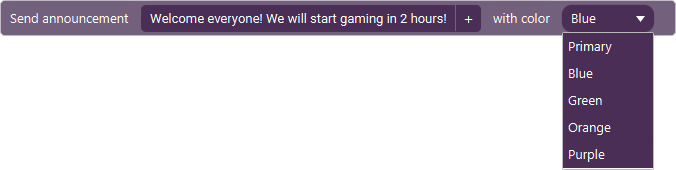
Announcement

The Action 'Announcement' as visible in Touch Portal.

Action settings

Message
The message of the announcement.
Announcement Color
The type of announcement message
This action allows you to do announcements in Twitch
Action
Icon showing the Touch Portal category this item belongs to.

3.1.11

Available since
Touch Portal Logo used to accompany the version number this item was available from.
Green Windows Logo indicating this Action is supported on Windows.
Green macOS Logo indicating this Action is supported on macOS.
Green Linux Logo indicating this Action is supported on Linux.

Shout Out

The Action 'Shout Out' as visible in Touch Portal.

Action settings

User ID Type
The type of id of the user you want to use. The name or the id.
User ID
The actual id in regards to the Type. If using the name, Ensure to use the login name.
This action allows you to do a shout out to a specific user
Action
Icon showing the Touch Portal category this item belongs to.

3.1.11

Available since
Touch Portal Logo used to accompany the version number this item was available from.
Green Windows Logo indicating this Action is supported on Windows.
Green macOS Logo indicating this Action is supported on macOS.
Green Linux Logo indicating this Action is supported on Linux.

Clear Chat

The Action 'Clear Chat' as visible in Touch Portal.
This action allows you to clear the chat in Twitch
Action
Icon showing the Touch Portal category this item belongs to.

1.10

Available since
Touch Portal Logo used to accompany the version number this item was available from.
Green Windows Logo indicating this Action is supported on Windows.
Green macOS Logo indicating this Action is supported on macOS.
Green Linux Logo indicating this Action is supported on Linux.

Create Clip

The Action 'Create Clip' as visible in Touch Portal.
This action allows you to create a clip on Twitch
Action
Icon showing the Touch Portal category this item belongs to.

1.9

Available since
Touch Portal Logo used to accompany the version number this item was available from.
Green Windows Logo indicating this Action is supported on Windows.
Green macOS Logo indicating this Action is supported on macOS.
Green Linux Logo indicating this Action is supported on Linux.

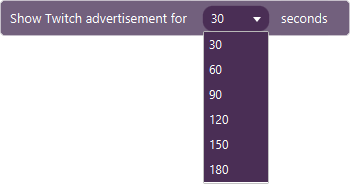
Start Advertisement

The Action 'Start Advertisement' as visible in Touch Portal.

Action settings

Ad Time
The length of the advertisement you want start.
This action allows you to start an Ad.
Action
Icon showing the Touch Portal category this item belongs to.

1.9

Available since
Touch Portal Logo used to accompany the version number this item was available from.
Green Windows Logo indicating this Action is supported on Windows.
Green macOS Logo indicating this Action is supported on macOS.
Green Linux Logo indicating this Action is supported on Linux.

Start / Stop Raid

The Action 'Start / Stop Raid' as visible in Touch Portal.

Action settings

Action
Start or stop the raid
User ID Type
The type of id of the user you want to use. The name or the id.
User ID
The actual id in regards to the Type. If using the name, Ensure to use the login name.
This action allows you to start or stop a raid
Note: If this action is not executed, check the Touch Portal logs as the reason should be present in the logs.
Action
Icon showing the Touch Portal category this item belongs to.

3.1.11

Available since
Touch Portal Logo used to accompany the version number this item was available from.
Green Windows Logo indicating this Action is supported on Windows.
Green macOS Logo indicating this Action is supported on macOS.
Green Linux Logo indicating this Action is supported on Linux.

Set Marker

The Action 'Set Marker' as visible in Touch Portal.

Action settings

Marker Name
The name of the marker
This action allows you to set a marker
Note: Markers cannot be added when your are not live (1), if VOD is not enabled (2), if the stream is a premiere (3) or when the stream is a rerun (4).
Note: The marker is created through the system, this means it is not created through the web interface and the feedback from that interface will not be present.
Action
Icon showing the Touch Portal category this item belongs to.

1.9

Available since
Touch Portal Logo used to accompany the version number this item was available from.
Green Windows Logo indicating this Action is supported on Windows.
Green macOS Logo indicating this Action is supported on macOS.
Green Linux Logo indicating this Action is supported on Linux.

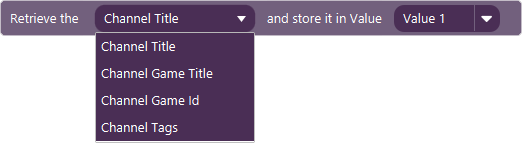
Own Channel Info To Value

The Action 'Own Channel Info To Value' as visible in Touch Portal.

Action settings

Data
The data to retrieve; Channel Title, Channel Game Title, Channel Game Id or Channel Tags
Value
The value to store the information in
This action allows you to get channel information and store it in a Value
Action
Icon showing the Touch Portal category this item belongs to.

4.0

Available since
Touch Portal Logo used to accompany the version number this item was available from.
Green Windows Logo indicating this Action is supported on Windows.
Green macOS Logo indicating this Action is supported on macOS.
Green Linux Logo indicating this Action is supported on Linux.

Own Stream Info To Value

The Action 'Own Stream Info To Value' as visible in Touch Portal.

Action settings

Data
The data to retrieve; Stream Title, Stream Category
Value
The value to store the information in
This action allows you to get channel information and store it in a Value
Action
Icon showing the Touch Portal category this item belongs to.

4.0

Available since
Touch Portal Logo used to accompany the version number this item was available from.
Green Windows Logo indicating this Action is supported on Windows.
Green macOS Logo indicating this Action is supported on macOS.
Green Linux Logo indicating this Action is supported on Linux.

Streamers Channel Info To Value

The Action 'Streamers Channel Info To Value' as visible in Touch Portal.

Action settings

Data
The data to retrieve; Channel Title, Channel Game Title, Channel Game Id or Channel Tags
Login name
The login name of the twitch user / channel
Value
The value to store the information in
This action allows you to get channel information from any channel and store it in a Value
Action
Icon showing the Touch Portal category this item belongs to.

4.2

Available since
Touch Portal Logo used to accompany the version number this item was available from.
Green Windows Logo indicating this Action is supported on Windows.
Green macOS Logo indicating this Action is supported on macOS.
Green Linux Logo indicating this Action is supported on Linux.

Set Stream Category

The Action 'Set Stream Category' as visible in Touch Portal.

Action settings

Category
The category name
This action allows you to set the stream category
Action
Icon showing the Touch Portal category this item belongs to.

2.2

Available since
Touch Portal Logo used to accompany the version number this item was available from.
Green Windows Logo indicating this Action is supported on Windows.
Green macOS Logo indicating this Action is supported on macOS.
Green Linux Logo indicating this Action is supported on Linux.

Set Stream Title

The Action 'Set Stream Title' as visible in Touch Portal.

Action settings

Stream Title
The title of the stream
This action allows you to set the stream title
Action
Icon showing the Touch Portal category this item belongs to.

2.1

Available since
Touch Portal Logo used to accompany the version number this item was available from.
Green Windows Logo indicating this Action is supported on Windows.
Green macOS Logo indicating this Action is supported on macOS.
Green Linux Logo indicating this Action is supported on Linux.

Shield Mode

The Action 'Shield Mode' as visible in Touch Portal.

Action settings

Action
Enable or Disable
User ID Type
The type of id of the user you want to use. The name, the id or yourself. When chosing yourself the third option will not show.
User ID (optional)
The actual id in regards to the Type. If using the name, Ensure to use the login name.
This action allows you to disable or enable shieldmode
Action
Icon showing the Touch Portal category this item belongs to.

3.1.11

Available since
Touch Portal Logo used to accompany the version number this item was available from.
Green Windows Logo indicating this Action is supported on Windows.
Green macOS Logo indicating this Action is supported on macOS.
Green Linux Logo indicating this Action is supported on Linux.

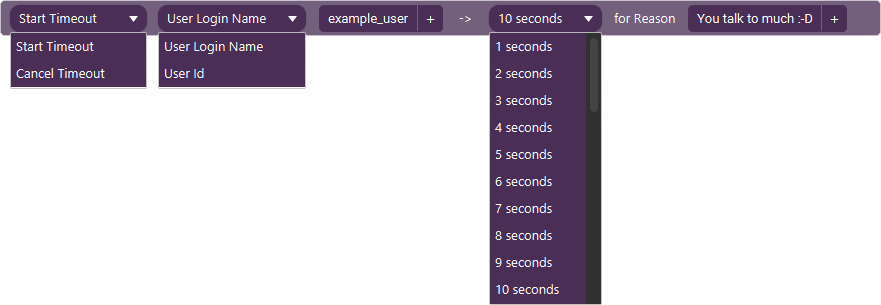
Start / Cancel Timeout User

The Action 'Start / Cancel Timeout User' as visible in Touch Portal.

Action settings

Action
Start of cancel the timout
User ID Type
The type of id of the user you want to use. The name, the id or yourself.
User ID (optional)
The actual id in regards to the Type. If using the name, Ensure to use the login name.
Duration
The time of the timeout
Reason
The reason for the timeout
This action allows you to set a timeout for a user
Action
Icon showing the Touch Portal category this item belongs to.

3.1.11

Available since
Touch Portal Logo used to accompany the version number this item was available from.
Green Windows Logo indicating this Action is supported on Windows.
Green macOS Logo indicating this Action is supported on macOS.
Green Linux Logo indicating this Action is supported on Linux.

Start / Cancel Timeout User (raw)

The Action 'Start / Cancel Timeout User (raw)' as visible in Touch Portal.

Action settings

Action
Start of cancel the timout
User ID Type
The type of id of the user you want to use. The name, the id or yourself.
User ID
The actual id in regards to the Type. If using the name, Ensure to use the login name.
Duration
The time of the timeout
Reason
The reason for the timeout
This action allows you to set a timeout using values and states instead of a choice box.
Action
Icon showing the Touch Portal category this item belongs to.

4.5

Available since
Touch Portal Logo used to accompany the version number this item was available from.
Green Windows Logo indicating this Action is supported on Windows.
Green macOS Logo indicating this Action is supported on macOS.
Green Linux Logo indicating this Action is supported on Linux.

Streamer Profile Pic Url To Value

The Action 'Streamer Profile Pic Url To Value' as visible in Touch Portal.

Action settings

Action
Profile image or Offline image
User Name
The users loginname to get the images from
Value
The Value to store the url in
This action allows you to retrieve the url of the streamers icon or offline image.
Action
Icon showing the Touch Portal category this item belongs to.

4.0

Available since
Touch Portal Logo used to accompany the version number this item was available from.
Green Windows Logo indicating this Action is supported on Windows.
Green macOS Logo indicating this Action is supported on macOS.
Green Linux Logo indicating this Action is supported on Linux.

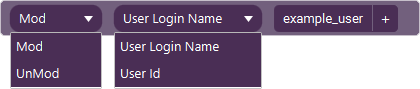
Switch Mod Status Of User

The Action 'Switch Mod Status Of User' as visible in Touch Portal.

Action settings

Action
Mod or Unmod
User ID Type
The type of id of the user you want to use. The name or the id.
User ID (optional)
The actual id in regards to the Type. If using the name, Ensure to use the login name.
This action allows you to mod or unmod a specific user
Action
Icon showing the Touch Portal category this item belongs to.

3.1.11

Available since
Touch Portal Logo used to accompany the version number this item was available from.
Green Windows Logo indicating this Action is supported on Windows.
Green macOS Logo indicating this Action is supported on macOS.
Green Linux Logo indicating this Action is supported on Linux.

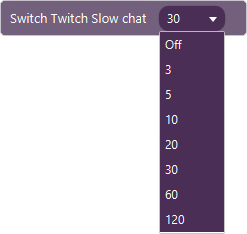
Switch Slow Chat

The Action 'Switch Slow Chat' as visible in Touch Portal.

Action settings

Time
The slow chat time or off
This action allows you to set the slow chat functionality
Action
Icon showing the Touch Portal category this item belongs to.

1.9

Available since
Touch Portal Logo used to accompany the version number this item was available from.
Green Windows Logo indicating this Action is supported on Windows.
Green macOS Logo indicating this Action is supported on macOS.
Green Linux Logo indicating this Action is supported on Linux.

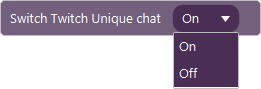
Switch Unique Chat

The Action 'Switch Unique Chat' as visible in Touch Portal.

Action settings

State
On or Off
This action allows you to set the unique chat functionality
Action
Icon showing the Touch Portal category this item belongs to.

3.1.11

Available since
Touch Portal Logo used to accompany the version number this item was available from.
Green Windows Logo indicating this Action is supported on Windows.
Green macOS Logo indicating this Action is supported on macOS.
Green Linux Logo indicating this Action is supported on Linux.

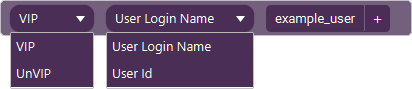
Switch Vip Status Of User

The Action 'Switch Vip Status Of User' as visible in Touch Portal.

Action settings

State
VIP or UNVIP
User ID Type
The type of id of the user you want to use. The name or the id.
User ID
The actual id in regards to the Type. If using the name, Ensure to use the login name.
This action allows you to set the VIP status of a user
Action
Icon showing the Touch Portal category this item belongs to.

3.1.11

Available since
Touch Portal Logo used to accompany the version number this item was available from.
Green Windows Logo indicating this Action is supported on Windows.
Green macOS Logo indicating this Action is supported on macOS.
Green Linux Logo indicating this Action is supported on Linux.

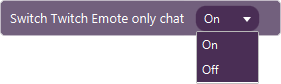
Switch Emote Only Chat

The Action 'Switch Emote Only Chat' as visible in Touch Portal.

Action settings

State
On or Off
This action allows you to set the emote only chat functionality
Action
Icon showing the Touch Portal category this item belongs to.

1.9

Available since
Touch Portal Logo used to accompany the version number this item was available from.
Green Windows Logo indicating this Action is supported on Windows.
Green macOS Logo indicating this Action is supported on macOS.
Green Linux Logo indicating this Action is supported on Linux.

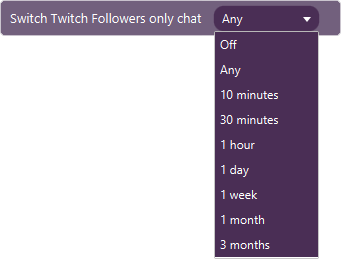
Switch Followers Only Chat

The Action 'Switch Followers Only Chat' as visible in Touch Portal.

Action settings

State
On or Off
This action allows you to set the followers only chat functionality
Action
Icon showing the Touch Portal category this item belongs to.

1.9

Available since
Touch Portal Logo used to accompany the version number this item was available from.
Green Windows Logo indicating this Action is supported on Windows.
Green macOS Logo indicating this Action is supported on macOS.
Green Linux Logo indicating this Action is supported on Linux.

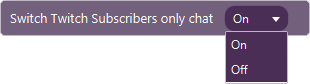
Switch Subscribers Only Chat

The Action 'Switch Subscribers Only Chat' as visible in Touch Portal.

Action settings

State
On or Off
This action allows you to set the subscribers only chat functionality
Action
Icon showing the Touch Portal category this item belongs to.

1.9

Available since
Touch Portal Logo used to accompany the version number this item was available from.
Green Windows Logo indicating this Action is supported on Windows.
Green macOS Logo indicating this Action is supported on macOS.
Green Linux Logo indicating this Action is supported on Linux.

Ban / Unban User

The Action 'Ban / Unban User' as visible in Touch Portal.

Action settings

Action
Ban or Unban
User ID Type
The type of id of the user you want to use. The name or the id.
User ID
The actual id in regards to the Type. If using the name, Ensure to use the login name.
Reason
The reason you want to specify for the banishment or the unbanishment.
This action allows you to ban or unban a user
Action
Icon showing the Touch Portal category this item belongs to.

3.1.11

Available since
Touch Portal Logo used to accompany the version number this item was available from.
Green Windows Logo indicating this Action is supported on Windows.
Green macOS Logo indicating this Action is supported on macOS.
Green Linux Logo indicating this Action is supported on Linux.

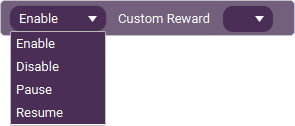
Change Custom Reward State

The Action 'Change Custom Reward State' as visible in Touch Portal.

Action settings

Status
The status you want to set
Reward
The Reward to change.
This action allows you to change the state of a custom reward.
Action
Icon showing the Touch Portal category this item belongs to.

4.5

Available since
Touch Portal Logo used to accompany the version number this item was available from.
Green Windows Logo indicating this Action is supported on Windows.
Green macOS Logo indicating this Action is supported on macOS.
Green Linux Logo indicating this Action is supported on Linux.

Delete Chat Message

The Action 'Delete Chat Message' as visible in Touch Portal.

Action settings

Message ID
The ID of the message.
This action allows you to delete a given message on Twitch Chat.
Action
Icon showing the Touch Portal category this item belongs to.

4.5

Available since
Touch Portal Logo used to accompany the version number this item was available from.
Green Windows Logo indicating this Action is supported on Windows.
Green macOS Logo indicating this Action is supported on macOS.
Green Linux Logo indicating this Action is supported on Linux.

Fulfill Or Cancel Custom Reward

The Action 'Fulfill Or Cancel Custom Reward' as visible in Touch Portal.

Action settings

Status
The status you want to set
instance ID
The ID of the Reward instance
Reward ID
The ID of the Reward
This action allows you to fulfill or to cancel a custom reward.
Action
Icon showing the Touch Portal category this item belongs to.

4.5

Available since
Touch Portal Logo used to accompany the version number this item was available from.
Green Windows Logo indicating this Action is supported on Windows.
Green macOS Logo indicating this Action is supported on macOS.
Green Linux Logo indicating this Action is supported on Linux.

Get Custom Rewards Info

The Action 'Get Custom Rewards Info' as visible in Touch Portal.

Action settings

Index
The index of which custom reward from the collection you want
ID
The ID of the Reward
Status
The status the reward needs to be
Order
The order you want the collection to be in.
This event allows you to get a custom reward from Twitch, either fulfilled, unfulfilled or canceled.
Action
Icon showing the Touch Portal category this item belongs to.

4.5

Available since
Touch Portal Logo used to accompany the version number this item was available from.
Green Windows Logo indicating this Action is supported on Windows.
Green macOS Logo indicating this Action is supported on macOS.
Green Linux Logo indicating this Action is supported on Linux.

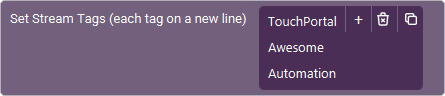
Set Stream Tags

The Action 'Set Stream Tags' as visible in Touch Portal.

Action settings

Tags
The tags to set.
This action allows you to update the tags for your stream. Each tag should be on a separate line and should follow the Twitch guidelines for tags.
Action
Icon showing the Touch Portal category this item belongs to.

4.5

Available since
Touch Portal Logo used to accompany the version number this item was available from.
Green Windows Logo indicating this Action is supported on Windows.
Green macOS Logo indicating this Action is supported on macOS.
Green Linux Logo indicating this Action is supported on Linux.

Snooze Next Ad

The Action 'Snooze Next Ad' as visible in Touch Portal.

Action settings

Message ID
The ID of the message.
This action allows you to, if available for your Twitch account, push back the timestamp of the upcoming automatic mid-roll ad by 5 minutes. This endpoint duplicates the snooze functionality in the creator dashboard’s Ads Manager.
Note: This action only works when you are live.
Action
Icon showing the Touch Portal category this item belongs to.

4.5

Available since
Touch Portal Logo used to accompany the version number this item was available from.
Green Windows Logo indicating this Action is supported on Windows.
Green macOS Logo indicating this Action is supported on macOS.
Green Linux Logo indicating this Action is supported on Linux.

Twitch Events

On New Subscriber

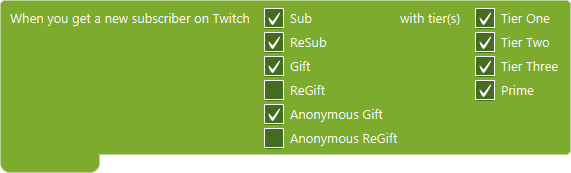
The Event 'On New Subscriber' as visible in Touch Portal.

Event settings

Type
Only listen for the selected types of subscriptions
Tier
Only listen for the selected tiers of subscriptions
This event allows you to listen for new subscribers.

Local States descriptions

The local states listed below are being passed along with the event when the event is triggered. They can be used to act on the specifics of the triggered event.

  • Subscription Type - This is the type of subscription, this can be Sub (1), ReSub (2), Gift (3), Anonymous Gift (4), ReGift (5) and Anonymous ReGift (6). In some cases this value will be the number representation of the type within Touch Portal.
  • Subscription Gifter Display Name - This is the display name of the user that has gifted the subscription. For anonymouse gifts, this will be "Anonymous" and for non-gift subs and resub it will be the same as the recipient.
  • Subscription Gifter Login Name - This is the login name of the user that has gifted the subscription. For anonymous gifts, this will be empty or Twitch API specific. Touch Portal will not interpreted or change this value and is passed along to the event as it is been given from the Twitch API. For subs and resubs this will be the same as the recipient.
  • Subscription Recipient Display Name - The display name of the user that receives the subscription.
  • Subscription Recipient Login Name - The login name of the user that receives the subscription.
  • Subscription Months (raw Data Field) - This field represents the cumulative number of months the gifter has giften in the channel. This is a raw data field passed along unaltered from the Twitch API.
  • Subscription Multi Month Duration (raw Data Field) - Number of months gifted as part of a single, multi-month gift OR number of months purchased as part of a multi-month subscription. This is a raw data field passed along unaltered from the Twitch API.
  • Subscription Cumulative Months (raw Data Field) - Cumulative number of tenure months of the subscription. This is a raw data field passed along unaltered from the Twitch API.
  • Subscription Message - The body of the user-entered resub message. Depending on the type of message, the message body contains different fields. If none is specified this state will be an empty text.
  • Subscription is Gifts - This represents whether or not this events subscription is a gift or not. The value will be 1 if it is, 0 if it is not.
  • Subscription Sub Plan Name (raw Data Field) - Channel Specific Subscription Plan Name. This is a raw data field passed along unaltered from the Twitch API.
  • Subscription Sub Plan Code - Subscription Plan ID, values: Prime, 1000, 2000, 3000 (According to Twitch Documentation) but the Prime version can also be represented as 1.
Event
Icon showing the Touch Portal category this item belongs to.

2.2

Available since
Touch Portal Logo used to accompany the version number this item was available from.
Green Windows Logo indicating this Event is supported on Windows.
Green macOS Logo indicating this Event is supported on macOS.
Green Linux Logo indicating this Event is supported on Linux.

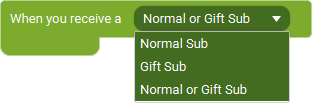
On New Subscriber

The Event 'On New Subscriber' as visible in Touch Portal.

Event settings

Type
What type of new subscribers you are interested in.
This event allows you to listen for new subscribers.

Local States descriptions

The local states listed below are being passed along with the event when the event is triggered. They can be used to act on the specifics of the triggered event.

  • Subscription Type - This is the type of subscription, this can be Sub (1), ReSub (2), Gift (3), Anonymous Gift (4), ReGift (5) and Anonymous ReGift (6). In some cases this value will be the number representation of the type within Touch Portal.
  • Subscription Gifter Display Name - This is the display name of the user that has gifted the subscription. For anonymouse gifts, this will be "Anonymous" and for non-gift subs and resub it will be the same as the recipient.
  • Subscription Gifter Login Name - This is the login name of the user that has gifted the subscription. For anonymous gifts, this will be empty or Twitch API specific. Touch Portal will not interpreted or change this value and is passed along to the event as it is been given from the Twitch API. For subs and resubs this will be the same as the recipient.
  • Subscription Recipient Display Name - The display name of the user that receives the subscription.
  • Subscription Recipient Login Name - The login name of the user that receives the subscription.
  • Subscription Months (raw Data Field) - This field represents the cumulative number of months the gifter has giften in the channel. This is a raw data field passed along unaltered from the Twitch API.
  • Subscription Multi Month Duration (raw Data Field) - Number of months gifted as part of a single, multi-month gift OR number of months purchased as part of a multi-month subscription. This is a raw data field passed along unaltered from the Twitch API.
  • Subscription Cumulative Months (raw Data Field) - Cumulative number of tenure months of the subscription. This is a raw data field passed along unaltered from the Twitch API.
  • Subscription Message - The body of the user-entered resub message. Depending on the type of message, the message body contains different fields. If none is specified this state will be an empty text.
  • Subscription is Gifts - This represents whether or not this events subscription is a gift or not. The value will be 1 if it is, 0 if it is not.
  • Subscription Sub Plan Name (raw Data Field) - Channel Specific Subscription Plan Name. This is a raw data field passed along unaltered from the Twitch API.
  • Subscription Sub Plan Code - Subscription Plan ID, values: Prime, 1000, 2000, 3000 (According to Twitch Documentation) but the Prime version can also be represented as 1.
Note: Re-subscriptions do not trigger this event. The only way to react on resubs is with the Chat Notification Event and only works when the user allows it to be advertised in the chat.
Event
Icon showing the Touch Portal category this item belongs to.

4.4.2

Available since
Touch Portal Logo used to accompany the version number this item was available from.
Green Windows Logo indicating this Event is supported on Windows.
Green macOS Logo indicating this Event is supported on macOS.
Green Linux Logo indicating this Event is supported on Linux.

On Channel Point Redemption

The Event 'On Channel Point Redemption' as visible in Touch Portal.

Event settings

Id
The id the of the channel point award. The id is the same as the name given in the Twitch interface to the channel point award. To create a Catch-All, use a * as the id.
This event allows you to listen for channel points redemption.
Event
Icon showing the Touch Portal category this item belongs to.

2.3

Available since
Touch Portal Logo used to accompany the version number this item was available from.
Green Windows Logo indicating this Event is supported on Windows.
Green macOS Logo indicating this Event is supported on macOS.
Green Linux Logo indicating this Event is supported on Linux.

On Chat Message Event

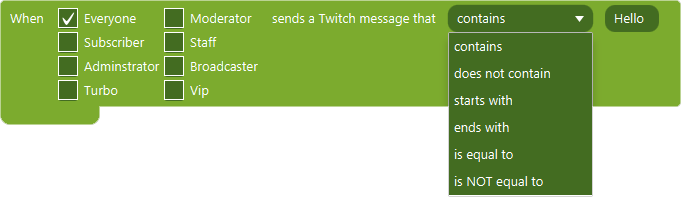
The Event 'On Chat Message Event' as visible in Touch Portal.

Event settings

Type
Select the types of chatters you want to trigger on
Comparator
the condition to meet to trigger
Text
the text to use with the comparator
This event allows you to listen for incoming chat messages
Note: You can catch all messages for the specified type by using the comparator is equal to and the token *
Event
Icon showing the Touch Portal category this item belongs to.

2.2

Available since
Touch Portal Logo used to accompany the version number this item was available from.
Green Windows Logo indicating this Event is supported on Windows.
Green macOS Logo indicating this Event is supported on macOS.
Green Linux Logo indicating this Event is supported on Linux.

Subscription Chat Notification Event

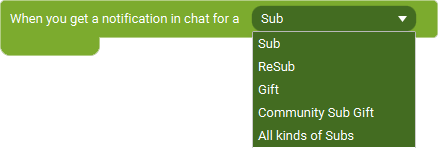
The Event 'Subscription Chat Notification Event' as visible in Touch Portal.

Event settings

Type
Select the types of subscriptions you want to listen for
This event allows you to listen for notifications about subscriptions shared in chat.
Note: You can catch all messages for the specified type by using the comparator is equal to and the token *
Note: Chatters can decide themselves whether or not these are shared in chat so this means you will not get all sub notification always with this event. If a user chooses to not share this in chat, you will not get the event about it.
Event
Icon showing the Touch Portal category this item belongs to.

4.4.2

Available since
Touch Portal Logo used to accompany the version number this item was available from.
Green Windows Logo indicating this Event is supported on Windows.
Green macOS Logo indicating this Event is supported on macOS.
Green Linux Logo indicating this Event is supported on Linux.

On Receiving Bits

The Event 'On Receiving Bits' as visible in Touch Portal.

Event settings

Start
the start of the range of bits received.
End
the end of the range of bits received.
This event allows you to listen for received bits between amounts
Note: This event listens for bits in between the two values specified. This means the numbers entered are not part of the range. If you want the event to trigger for when you receive 1 or 2 bits, use 0 to 3 as the range. It will then trigger for all numbers between 0 and 3, which are 1 and 2.
Event
Icon showing the Touch Portal category this item belongs to.

2.2

Available since
Touch Portal Logo used to accompany the version number this item was available from.
Green Windows Logo indicating this Event is supported on Windows.
Green macOS Logo indicating this Event is supported on macOS.
Green Linux Logo indicating this Event is supported on Linux.

On Host

The Event 'On Host' as visible in Touch Portal.
This event allows you to listen for when another user starts to host your stream
Event
Icon showing the Touch Portal category this item belongs to.

2.2

Available since
Touch Portal Logo used to accompany the version number this item was available from.
Green Windows Logo indicating this Event is supported on Windows.
Green macOS Logo indicating this Event is supported on macOS.
Green Linux Logo indicating this Event is supported on Linux.

On Raid

The Event 'On Raid' as visible in Touch Portal.
This event allows you to listen for when another user starts to raid your stream
Event
Icon showing the Touch Portal category this item belongs to.

2.2

Available since
Touch Portal Logo used to accompany the version number this item was available from.
Green Windows Logo indicating this Event is supported on Windows.
Green macOS Logo indicating this Event is supported on macOS.
Green Linux Logo indicating this Event is supported on Linux.

On Channel Point Rewards Redemption Event

The Event 'On Channel Point Rewards Redemption Event' as visible in Touch Portal.
This event allows you to listen for when a Channel Point Reward is redeemed.
Event
Icon showing the Touch Portal category this item belongs to.

4.4.2

Available since
Touch Portal Logo used to accompany the version number this item was available from.
Green Windows Logo indicating this Event is supported on Windows.
Green macOS Logo indicating this Event is supported on macOS.
Green Linux Logo indicating this Event is supported on Linux.

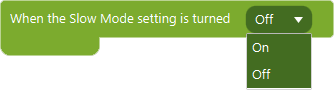
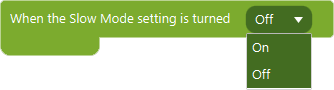
When Slow Mode Changes

The Event 'When Slow Mode Changes' as visible in Touch Portal.

Event settings

State
On or Off
This event will listen to the slow chat being active or not
Event
Icon showing the Touch Portal category this item belongs to.

4.0

Available since
Touch Portal Logo used to accompany the version number this item was available from.
Green Windows Logo indicating this Event is supported on Windows.
Green macOS Logo indicating this Event is supported on macOS.
Green Linux Logo indicating this Event is supported on Linux.

When Unique Mode Changes

The Event 'When Unique Mode Changes' as visible in Touch Portal.

Event settings

State
On or Off
This event will listen to the unique chat being active or not
Event
Icon showing the Touch Portal category this item belongs to.

4.0

Available since
Touch Portal Logo used to accompany the version number this item was available from.
Green Windows Logo indicating this Event is supported on Windows.
Green macOS Logo indicating this Event is supported on macOS.
Green Linux Logo indicating this Event is supported on Linux.

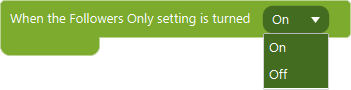
When Followers Only Chat Changes

The Event 'When Followers Only Chat Changes' as visible in Touch Portal.

Event settings

State
On or Off
This event will listen to the followers only chat being active or not
Event
Icon showing the Touch Portal category this item belongs to.

3.1.11

Available since
Touch Portal Logo used to accompany the version number this item was available from.
Green Windows Logo indicating this Event is supported on Windows.
Green macOS Logo indicating this Event is supported on macOS.
Green Linux Logo indicating this Event is supported on Linux.

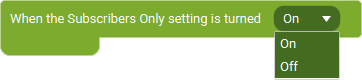
When Subscribers Only Chat Changes

The Event 'When Subscribers Only Chat Changes' as visible in Touch Portal.

Event settings

State
On or Off
This event allows you to listen for when the chat setting for subscribers only changes
Event
Icon showing the Touch Portal category this item belongs to.

4.3

Available since
Touch Portal Logo used to accompany the version number this item was available from.
Green Windows Logo indicating this Event is supported on Windows.
Green macOS Logo indicating this Event is supported on macOS.
Green Linux Logo indicating this Event is supported on Linux.

When A Custom Reward Is Redeemed

The Event 'When A Custom Reward Is Redeemed' as visible in Touch Portal.

Event settings

Reward
The Reward you want to listen for when it gets redeemed.
This event allows you to listen for when your custom reward is being redeemed by a user on Twitch.
Event
Icon showing the Touch Portal category this item belongs to.

4.3

Available since
Touch Portal Logo used to accompany the version number this item was available from.
Green Windows Logo indicating this Event is supported on Windows.
Green macOS Logo indicating this Event is supported on macOS.
Green Linux Logo indicating this Event is supported on Linux.

When A Shout Out Is Created On Your Channel
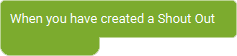
The Event 'When A Shout Out Is Created On Your Channel' as visible in Touch Portal.
This event allows you to listen for when a shoutout is created on your channel by either you or a moderator.
Event
Icon showing the Touch Portal category this item belongs to.

4.3

Available since
Touch Portal Logo used to accompany the version number this item was available from.
Green Windows Logo indicating this Event is supported on Windows.
Green macOS Logo indicating this Event is supported on macOS.
Green Linux Logo indicating this Event is supported on Linux.

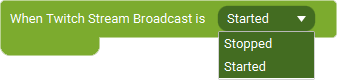
When Stream Starts Or Stops

The Event 'When Stream Starts Or Stops' as visible in Touch Portal.

Event settings

Option
Whether you want to listen for the started event or the stopped.
This event allows you to listen for when the Twitch stream starts (go live) orstops.
Event
Icon showing the Touch Portal category this item belongs to.

4.3

Available since
Touch Portal Logo used to accompany the version number this item was available from.
Green Windows Logo indicating this Event is supported on Windows.
Green macOS Logo indicating this Event is supported on macOS.
Green Linux Logo indicating this Event is supported on Linux.

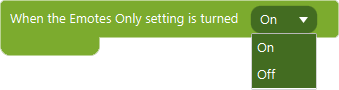
When Emotes Only Chat Changes

The Event 'When Emotes Only Chat Changes' as visible in Touch Portal.

Event settings

State
On or Off
This event will listen to the emotes only chat being active or not
Event
Icon showing the Touch Portal category this item belongs to.

4.0

Available since
Touch Portal Logo used to accompany the version number this item was available from.
Green Windows Logo indicating this Event is supported on Windows.
Green macOS Logo indicating this Event is supported on macOS.
Green Linux Logo indicating this Event is supported on Linux.

On New Follower

The Event 'On New Follower' as visible in Touch Portal.
This event will listen for new followers
Event
Icon showing the Touch Portal category this item belongs to.

3.0

Available since
Touch Portal Logo used to accompany the version number this item was available from.
Green Windows Logo indicating this Event is supported on Windows.
Green macOS Logo indicating this Event is supported on macOS.
Green Linux Logo indicating this Event is supported on Linux.

On New Whisper

The Event 'On New Whisper' as visible in Touch Portal.

Event settings

Name
The username of the user that you received a whisper from
This event will listen for new whispers
Event
Icon showing the Touch Portal category this item belongs to.

3.0

Available since
Touch Portal Logo used to accompany the version number this item was available from.
Green Windows Logo indicating this Event is supported on Windows.
Green macOS Logo indicating this Event is supported on macOS.
Green Linux Logo indicating this Event is supported on Linux.

On Gift Sub Bomb

The Event 'On Gift Sub Bomb' as visible in Touch Portal.

Event settings

Tier
The tiers to listen to
Start range
The start of the range of subs gifted
End range
The end of the range of subs gifted
This event allows you to listen for gift sub bombs
Event
Icon showing the Touch Portal category this item belongs to.

3.0

Available since
Touch Portal Logo used to accompany the version number this item was available from.
Green Windows Logo indicating this Event is supported on Windows.
Green macOS Logo indicating this Event is supported on macOS.
Green Linux Logo indicating this Event is supported on Linux.

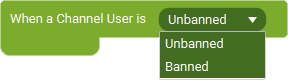
On User Ban Or Unban

The Event 'On User Ban Or Unban' as visible in Touch Portal.
This event allows you to listen for timeouts, bans and unbans on your channel. Use the below listed local states to control for what and how you want the event to act.

Local States descriptions

The local states listed below are being passed along with the event when the event is triggered. They can be used to act on the specifics of the triggered event.

  • Issuer User ID - The user ID of the user that issued the ban or unban.
  • Issuer User Login name - The user login name of the user that issued the ban or unban.
  • Issuer User Name - The user display name of the user that issued the ban or unban.
  • (Un)Banned User ID - The user ID of the user that is timed out, banned or unbanned.
  • (Un)Banned User Login name - The user login name of the user that is timed out, banned or unbanned.
  • (Un)Banned User Display Name - The user display name of the user that is timed out, banned or unbanned.
  • Ban Reason - The reason as given by the issuer of the ban (or timeout). This local state is not available for the Unban event.
  • Banned at - The UTC date and time (in RFC3339 format) of when the user was banned or put in a timeout. This is a string representation and not a time or data object. This local state is not available for the Unban event.
  • Ends at - The UTC date and time (in RFC3339 format) of when the timeout ends. Is empty if the user was banned instead of put in a timeout. This is a string representation and not a time or data object. This local state is not available for the Unban event.
  • Is Ban Permanent - Indicates whether the ban is permanent (1) or a timeout (0). If 1, Ends At will be empty.
Event
Icon showing the Touch Portal category this item belongs to.

4.1

Available since
Touch Portal Logo used to accompany the version number this item was available from.
Green Windows Logo indicating this Event is supported on Windows.
Green macOS Logo indicating this Event is supported on macOS.
Green Linux Logo indicating this Event is supported on Linux.

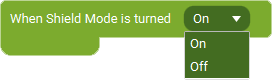
When Shield Mode State Changes

The Event 'When Shield Mode State Changes' as visible in Touch Portal.
This event allows you to listen for when the shield mode state changes to on or off.
Event
Icon showing the Touch Portal category this item belongs to.

4.5

Available since
Touch Portal Logo used to accompany the version number this item was available from.
Green Windows Logo indicating this Event is supported on Windows.
Green macOS Logo indicating this Event is supported on macOS.
Green Linux Logo indicating this Event is supported on Linux.

On Ad Break Start

The Event 'On Ad Break Start' as visible in Touch Portal.
This event allows you to listen for when a user runs a midroll commercial break, either manually or automatically via ads manager.

Local States descriptions

The local states listed below are being passed along with the event when the event is triggered. They can be used to act on the specifics of the triggered event.

  • Ad Break Requester User ID - The ID of the user that requested the ad. For automatic ads, this will be the ID of the broadcaster
  • Ad Break Requester User Login - The login of the user that requested the ad.
  • Ad Break Requester User Name - The display name of the user that requested the ad.
  • Ad Break Time Stamp - The UTC timestamp of when the ad break began, in RFC3339 format. Note that there is potential delay between this event, when the streamer requested the ad break, and when the viewers will see ads. This is a string representation and not a time or data object.
  • Ad Break Duration - Length in seconds of the mid-roll ad break requested.
  • Ad Break Is Started Automatic - Indicates if the ad was automatically scheduled via Ads Manager
Event
Icon showing the Touch Portal category this item belongs to.

4.1

Available since
Touch Portal Logo used to accompany the version number this item was available from.
Green Windows Logo indicating this Event is supported on Windows.
Green macOS Logo indicating this Event is supported on macOS.
Green Linux Logo indicating this Event is supported on Linux.

When Channel Info Updates

The Event 'When Channel Info Updates' as visible in Touch Portal.
This event allows you to listen for channel info changes.

Local States descriptions

The local states listed below are being passed along with the event when the event is triggered. They can be used to act on the specifics of the triggered event.

  • Title - The channel's stream title.
  • Language - The channel's broadcast language.
  • Category Id - The channel's category ID.
  • Category Name - The channel's category name.
  • Classification Labels - String of content classification label IDs currently applied on the Channel separated by commas.
Event
Icon showing the Touch Portal category this item belongs to.

4.1

Available since
Touch Portal Logo used to accompany the version number this item was available from.
Green Windows Logo indicating this Event is supported on Windows.
Green macOS Logo indicating this Event is supported on macOS.
Green Linux Logo indicating this Event is supported on Linux.

When Twitch Charity Campaign Starts / Progresses / Ends
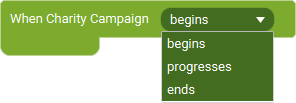
The Event 'When Twitch Charity Campaign Starts / Progresses / Ends' as visible in Touch Portal.

Event settings

Event Trigger
whether this event should trigger on the start, end or when there is progress.
This event allows you to listen for Charity Campaign events.

Local States descriptions

The local states listed below are being passed along with the event when the event is triggered. They can be used to act on the specifics of the triggered event.

  • Name - The charity's name.
  • Description - A description of the charity.
  • Logo - A URL to an image of the charity's logo. The image's type is PNG and its size is 100px by 100px.
  • Website - A URL to the charity's website.
  • Started At - The UTC timestamp (in RFC3339 format) of when the broadcaster started the campaign. This is a string and not a time or date object. This value will only be filled with the started state.
  • Stopped At - The UTC timestamp (in RFC3339 format) of when the broadcaster stopped the campaign. This is a string and not a time or date object. This value will only be filled with the stopped state.
  • Current Amount Value - The value of the current amount. This is a decimal number.
  • Current Amount Pretty - The value of the current amount. This is a string containing the currency as well, example 100.00 USD or 250.00 EUR
  • Target Amount Value - The value of the target amount. This is a decimal number.
  • Target Amount Pretty - The value of the target amount. This is a string containing the currency as well, example 100.00 USD or 250.00 EUR
Note: Twitch does not guarantee that the begin message is sent before the initial progress message. Keep this in mind when using these events for complex setups.
Event
Icon showing the Touch Portal category this item belongs to.

4.1

Available since
Touch Portal Logo used to accompany the version number this item was available from.
Green Windows Logo indicating this Event is supported on Windows.
Green macOS Logo indicating this Event is supported on macOS.
Green Linux Logo indicating this Event is supported on Linux.

When A Donation Is Made

The Event 'When A Donation Is Made' as visible in Touch Portal.
This event allows you to listen for donations made.

Local States descriptions

The local states listed below are being passed along with the event when the event is triggered. They can be used to act on the specifics of the triggered event.

  • Donation Charity Campaign Name - The charity's name.
  • Donation Charity Campaign Description - A description of the charity.
  • Donation Charity Campaign Logo - A URL to an image of the charity's logo. The image's type is PNG and its size is 100px by 100px.
  • Donation Charity Campaign Website - A URL to the charity's website.
  • Donator User Id - An ID that identifies the user that donated to the campaign.
  • Donator User Login Name - The user's login name.
  • Donator User Display Name - The user's display name.
  • Donation Amount Value - The amount donated. This is a decimal number.
  • Donation Amount Pretty - The donation amount formatted. This is a string containing the currency as well, examples 100.00 USD or 250.00 EUR
Event
Icon showing the Touch Portal category this item belongs to.

4.1

Available since
Touch Portal Logo used to accompany the version number this item was available from.
Green Windows Logo indicating this Event is supported on Windows.
Green macOS Logo indicating this Event is supported on macOS.
Green Linux Logo indicating this Event is supported on Linux.

When A Poll Begins / Progresses / Ends
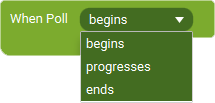
The Event 'When A Poll Begins / Progresses / Ends' as visible in Touch Portal.

Event settings

Event Trigger
whether this event should trigger on the start, end or when there is progress.
This event allows you to listen for Twitch Poll events.

Local States descriptions

The local states listed below are being passed along with the event when the event is triggered. They can be used to act on the specifics of the triggered event.

  • ID - ID of the poll.
  • Title - Question displayed for the poll.
  • Started At - The time the poll started. This is a String representation, not a time or date object.
  • Ends At - The time the poll will end. This is a String representation, not a time or date object.
  • Choice Count - The number of choices in this poll.
  • Bits Voting Available - Whether bits voting is enabled (1) or not (0).
  • Bits Required per Vote - The amount of bits that represent one vote.
  • Channel Points Voting Available - Whether Channel Points voting is enabled (1) or not (0).
  • Channel Points Required per Vote - The amount of Channel Points that represent one vote.
  • Choices Collection - This is the collection of choices within this poll. This is a special local state and requires you to select what part of the choice data structure you want to use. When you are not using the visual tags system within Touch Portal you need to construct this value manually. An example is $local2{TwitchPollChoices{[0].title}} where the important parts to understand are within the double brackets. This first tells which choice from the choice collection you want to use ([0]), which in this case tells to use the zero index of the collection which is the first item. Then the second part of the code is the attribute you want to use from that object. In this case we want the title, which combined is [0].title. all options are:
    idID for the choice.
    titleText displayed for the choice.
    bits_votesCurrently Not used by Twitch; will be set to 0.
    channel_points_votesNumber of votes received via Channel Points.
    votesTotal number of votes received for the choice across all methods of voting.
Event
Icon showing the Touch Portal category this item belongs to.

4.1

Available since
Touch Portal Logo used to accompany the version number this item was available from.
Green Windows Logo indicating this Event is supported on Windows.
Green macOS Logo indicating this Event is supported on macOS.
Green Linux Logo indicating this Event is supported on Linux.

When Hype Train Starts / Progresses / Ends
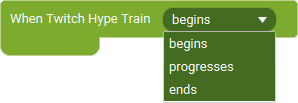
The Event 'When Hype Train Starts / Progresses / Ends' as visible in Touch Portal.

Event settings

Event Trigger
whether this event should trigger on the start, end or when there is progress.
This event allows you to listen for hypetrain events.

Local States descriptions

The local states listed below are being passed along with the event when the event is triggered. They can be used to act on the specifics of the triggered event.

  • Total - Total points contributed to the Hype Train.
  • Progress - The number of points contributed to the Hype Train at the current level.
  • Goal - The number of points required to reach the next level.
  • Level - The starting level of the Hype Train.
  • Started At - The time when the Hype Train started. This is a textual representation of the time, it is not a time or date object.
  • Expires At - The time when the Hype Train expires. The expiration is extended when the Hype Train reaches a new level. This is a textual representation of the time, it is not a time or date object.
  • Last Contributor - The most recent contribution. This is a comma separated string in the format ,,,,. Check out the Twitch API documentation for more information about these structures and data fields.
  • Top Contributions (raw) - The contributors with the most points contributed. This is the string representation of the raw JSON object received from Twitch. We suggest to use a JSON parsing plugin to get the data from this string. Check out the Twitch API documentation for more information about these structures and data fields.
Note: Twitch does not guarantee that the begin message is sent before the initial progress message. Keep this in mind when using these events for complex setups.
Event
Icon showing the Touch Portal category this item belongs to.

4.1

Available since
Touch Portal Logo used to accompany the version number this item was available from.
Green Windows Logo indicating this Event is supported on Windows.
Green macOS Logo indicating this Event is supported on macOS.
Green Linux Logo indicating this Event is supported on Linux.

When Twitch Goal Starts / Progresses / Ends
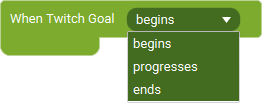
The Event 'When Twitch Goal Starts / Progresses / Ends' as visible in Touch Portal.

Event settings

Event Trigger
whether this event should trigger on the start, end or when there is progress.
This event allows you to listen for Goal events.

Local States descriptions

The local states listed below are being passed along with the event when the event is triggered. They can be used to act on the specifics of the triggered event.

  • Goal Type - The type of goal. Possible values (from Twitch API Documentation) are:
    followThe goal is to increase followers.
    subscriptionThe goal is to increase subscriptions. This type shows the net increase or decrease in tier points associated with the subscriptions.
    subscription_countThe goal is to increase subscriptions. This type shows the net increase or decrease in the number of subscriptions.
    new_subscriptionThe goal is to increase subscriptions. This type shows only the net increase in tier points associated with the subscriptions (it does not account for users that unsubscribed since the goal started).
    new_subscription_countThe goal is to increase subscriptions. This type shows only the net increase in the number of subscriptions (it does not account for users that unsubscribed since the goal started).
  • Goal Description - A description of the goal, if specified, otherwise empty. The description may contain a maximum of 40 characters.
  • Goal is Achieved - A value that indicates whether the broadcaster achieved their goal. Is 1 if the goal was achieved; otherwise, 0. This field is only available for the event when the Goal ends.
  • Goal Target Amount - The goal's target value.
  • Goal Current Amount - The goal's current value.
  • Goal Started At - The UTC timestamp in RFC 3339 format, which indicates when the broadcaster created the goal. This is a String representation and not a date or time object.
  • Goal Ended At - The UTC timestamp in RFC 3339 format, which indicates when the broadcaster ended the goal. This is a String representation and not a date or time object. This field is only available for the event when the Goal ends.
Note: Twitch does not guarantee that the begin message is sent before the initial progress message. Keep this in mind when using these events for complex setups.
Event
Icon showing the Touch Portal category this item belongs to.

4.1

Available since
Touch Portal Logo used to accompany the version number this item was available from.
Green Windows Logo indicating this Event is supported on Windows.
Green macOS Logo indicating this Event is supported on macOS.
Green Linux Logo indicating this Event is supported on Linux.

When Twitch Prediction Starts / Progresses / Ends
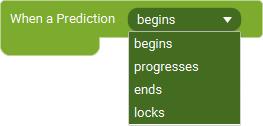
The Event 'When Twitch Prediction Starts / Progresses / Ends' as visible in Touch Portal.

Event settings

Event Trigger
whether this event should trigger on the start, end, when it locks or when there is progress.
This event allows you to listen for Prediction events.

Local States descriptions

The local states listed below are being passed along with the event when the event is triggered. They can be used to act on the specifics of the triggered event.

  • Prediction Id - Channel Points Prediction ID.
  • Prediction Title - Title for the Channel Points Prediction.
  • Prediction Started At - The time the Channel Points Prediction started. This is a String representation, not a time or date object.
  • Prediction Locks At - The time the Channel Points Prediction will automatically lock. This is a String representation, not a time or date object. Not available in the Lock Event.
  • Prediction Locked At - The time the Channel Points Prediction was locked. This is a String representation, not a time or date object. Only available in the Lock event
  • Prediction Outcome Count - The amount of outcomes in the outcome collection.
  • Predictions Outcome Collection - The outcomes collection contains an object that describes each outcome and, if applicable, the number of users who selected that outcome and the number of Channel Points for that outcome. This is a special local state and requires you to select what part of the outcome data structure you want to use. When you are not using the visual tags system within Touch Portal you need to construct this value manually. An example is $local2{TwitchPredictionOutcomes{[0].title}} where the important parts to understand are within the double brackets. This first tells which outcome from the outcomes collection you want to use ([0]), which in this case tells to use the zero index of the collection which is the first item. Then the second part of the code is the attribute you want to use from that object. In this case we want the title, which combined is [0].title. all options are:
    idThe outcome ID.
    titleThe outcome title.
    colorThe color for the outcome. Valid values are pink and blue.
    usersThe number of users who used Channel Points on this outcome.
    channel_pointsThe total number of Channel Points used on this outcome.
Note: Twitch does not guarantee that the begin message is sent before the initial progress message. Keep this in mind when using these events for complex setups.
Event
Icon showing the Touch Portal category this item belongs to.

4.1

Available since
Touch Portal Logo used to accompany the version number this item was available from.
Green Windows Logo indicating this Event is supported on Windows.
Green macOS Logo indicating this Event is supported on macOS.
Green Linux Logo indicating this Event is supported on Linux.

On Shout Out Received

The Event 'On Shout Out Received' as visible in Touch Portal.
This event allows you to listen for when get a Shout Out.

Local States descriptions

The local states listed below are being passed along with the event when the event is triggered. They can be used to act on the specifics of the triggered event.

  • Shout Out by User Id - The User ID that identifies the broadcaster that sent the Shoutout.
  • Shout Out by User Login - The User Login Name that identifies the broadcaster that sent the Shoutout.
  • Shout Out by User Name - The User Name that identifies the broadcaster that sent the Shoutout.
  • Shout Out Viewer Count - The number of users that were watching the shout-out-by-broadcaster's stream at the time of the Shoutout.
  • Shout Out Started at - The UTC timestamp (in RFC3339 format) of when the moderator sent the Shoutout. This is a String representation and not a date or time object.
Event
Icon showing the Touch Portal category this item belongs to.

4.1

Available since
Touch Portal Logo used to accompany the version number this item was available from.
Green Windows Logo indicating this Event is supported on Windows.
Green macOS Logo indicating this Event is supported on macOS.
Green Linux Logo indicating this Event is supported on Linux.

On Subscription End

The Event 'On Subscription End' as visible in Touch Portal.
This event allows you to listen for when a user stops being a subscriber to your channel.

Local States descriptions

The local states listed below are being passed along with the event when the event is triggered. They can be used to act on the specifics of the triggered event.

  • End Subscription User Id - The user ID for the user whose subscription ended.
  • End Subscription User Login - The user login name for the user whose subscription ended.
  • End Subscription User Name - The user display name for the user whose subscription ended.
  • End Subscription Tier - The tier of the subscription that ended. Valid values are 1000, 2000, and 3000.
  • End Subscription Was Gifted - Whether the subscription was a gift.
Event
Icon showing the Touch Portal category this item belongs to.

4.1

Available since
Touch Portal Logo used to accompany the version number this item was available from.
Green Windows Logo indicating this Event is supported on Windows.
Green macOS Logo indicating this Event is supported on macOS.
Green Linux Logo indicating this Event is supported on Linux.