Mobile Sided Reference
This page describes built-in Touch Portal Mobile Sided actions, events and states. For other automation options, see the Touch Portal Capability Model.
Mobile Sided Actions
Mobile Open App Action

Action settings
Device Name
The mobile device on which to trigger this action.
Package Name
The Android package name of the app you want to start on the device.
This action allows you to open an app on your Android device by specifying the app package.
Note: Starting apps using their package name is not a complete solution. Some apps can't be started like that and for some apps you will not have the permission to open them from another app. It also depends on the Android version whether or not it works.
Action

4.7
Available since


Mobile Open Url Action

Action settings
Device Name
The mobile device on which to trigger this action.
Url
The url to navigate to on the browser.
This action allows you to open an URL on the mobile device.
Note: This action uses the default browser to open the url. This means this action will put Touch Portal to the background and the browser to the foreground.
Action
4.7
Available since
Mobile Play Audio File Action

Action settings
Device Name
The mobile device on which to trigger this action.
File
The file to play on the mobile device.
This action allows you to play a sound on the mobile device.
Note: This action first needs to cache the file on the device, which means that the first time you use this action for a specific audio file, it may be played delayed depending on the size. Once it is in the local cache on the mobile device the sound will play instantly.
Note: Not all audio files, formats or encoding are supported, sometimes you need to convert an MP3 to a more generic accepted MP3 encoded format for it to work.
Action
4.7
Available since
Mobile Popup Selection / Choice Action

Action settings
Device
The device on which to show the popup message
Title
The title shown on the popup window
Timeout In Sec
The time after which the popup closes automatically.
Optionstring
The comma separated string containing all the options
Default
The default selected option from the user options
This action allows you to show a popup with a predefined selection that you can select from. The result will be made available in the local states after the popup has been closed.
Available Local Values
Popup Result Status
The status of the action by the user, either "submitted", "cancelled" or "Timeout".
Popup Result Value
The value the user choose.
Note: All mobile popups have a limited time before they automatically close and give a result. Be sure to check the status after using this action to ensure proper execution of follow up actions.
Action
4.7
Available since
Mobile Popup User Input Action
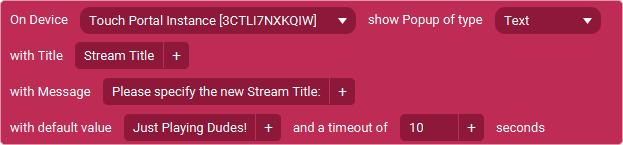
Action settings
Device Name
The mobile device on which to trigger this popup.
Type
The type of data the user fills in, can be text, date or password
Title
The title of the popup window
Message
The body message of the popup window
Default
The default text shown in the textfield
Timeout In Sec
The time in seconds on how long the popup will be shown if not used.
This action allows you to trigger a popup window on the mobile side where the user can enter custom data that will be made available when the popup closes in the local states
Available Local Values
Popup Result Status
The status of the action by the user, either "submitted", "cancelled" or "Timeout".
Popup Result Value
The value the user wrote in the input popup.
Note: All mobile popups have a limited time before they automatically close and give a result. Be sure to check the status after using this action to ensure proper execution of follow up actions.
Action
4.7
Available since
Mobile Popup Yes No Action

Action settings
Device Name
The mobile device on which to trigger this popup.
Title
The title of the popup window
Message
The body message of the popup window
Timeout In Sec
The time in seconds on how long the popup will be shown if not used.
This action allows you to show a popup on the mobile interface where the user needs to answer a yes or no question.
Available Local Values
Popup Result Status
The status of the action by the user, either "submitted" or "cancelled".
Popup Result Value
The value the user choose, either "yes" or "no".
Note: All mobile popups have a limited time (timeout value) before they automatically close and give a result. Be sure to check the status after using this action to ensure proper execution of follow up actions.
Action
4.7
Available since
Mobile Set Brightness Action

Action settings
Device Name
The mobile device on which to trigger this action.
Brightness
the brightness percentage 1-100.
This action allows you to change the brightness of the selected mobile device
Note: This action changes the brightness of the device itself, not just the Touch Portal app. The change is permanent until you change it again or change it in the settings of your device. This does not override the automatic brightness functionality set on a device, in which case the result may vary.
Action
4.7
Available since
Mobile Set Clipboard Text Action

Action settings
Device Name
The mobile device on which to trigger this action.
Clipboard Text
The text to set in the clipboard.
This action allows you to set the clipboard text on your mobile device.
Action
4.7
Available since
Mobile Trigger Action / Menu Bar Visible Action

Action settings
Device Name
The mobile device on which to trigger this action.
This action allows you to trigger the show of the action bar when you are in full screen mode.
Action
4.7
Available since
Mobile Use Flash Light Action

Action settings
Device Name
The mobile device on which to trigger this action.
Option
Enable or Disable option
This action allows you to enable/disable the flash light on the device
Note: This action will only work if you have a flashlight on the device and for some device it may be blocked and might not work.
Action
4.7
Available since
Mobile Use Screen Saver Action

Action settings
Device Name
The mobile device on which to trigger this action.
Option
Enable or Disable option
This action allows you to trigger the screensaver within Touch Portal.
Note: It depends on how the screensaver is set up on the Touch Portal app what will happen when using this action.
Action
4.7
Available since